Table of Contents
Some links on JAK Digital Hub are affiliate links, meaning we may earn a small commission at no extra cost to you. Read full disclaimer.
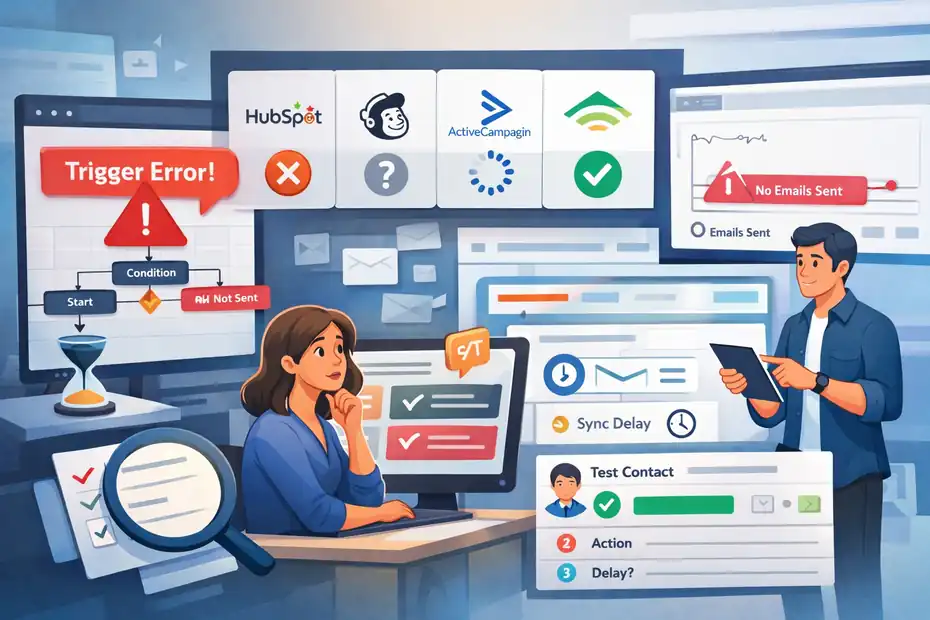
If your email automation software not triggering issue is stopping campaigns, sales follow-ups, or customer onboarding, you are not alone.
I’ve seen this happen in simple welcome flows and in complex multi-step automations, and the frustrating part is that the problem is usually small but hidden.
The good news is that most trigger failures come down to a short list: broken entry conditions, sync delays, suppression rules, re-enrollment settings, or bad event data.
Let me walk you through how to diagnose it fast, fix the actual cause, and stop it from happening again.
Start With The Real Problem: Is It A Trigger Issue Or A Delivery Issue?
A lot of people say an automation “didn’t trigger” when the real problem happened one step later. That distinction matters, because you can waste hours debugging the wrong thing.
What “Not Triggering” Usually Means
Before you touch settings, figure out whether the contact never entered the automation at all, or entered it and got blocked later.
In practice, there are usually three different failures hiding under the same complaint:
- Entry failure: The person never qualified for the automation.
- Processing failure: They entered, but a delay, filter, or branch stopped progress.
- Send failure: The email was queued but not sent, suppressed, or failed deliverability checks.
I suggest checking the contact record first, not the workflow builder. If the contact timeline shows no enrollment event, your trigger logic is the problem. If the enrollment exists but no email send follows, your issue is downstream.
This sounds basic, but it saves a huge amount of time. HubSpot specifically recommends testing the record against workflow enrollment triggers, and notes common failures such as bad AND/OR logic, existing records not being enrolled when the workflow was turned on, instant unenrollment, and missing re-enrollment settings.
Klaviyo makes a similar distinction by separating general flow issues, trigger issues, alert icons, and flow history, which is a good reminder that “flow not working” is broader than “trigger broken.”
The Fastest 5-Minute Triage Check
Here’s the first triage flow I recommend:
- Step 1: Open one affected contact and verify whether they entered the automation.
- Step 2: Check the exact trigger event such as form submit, tag added, purchase completed, or list join.
- Step 3: Compare timestamps between the user action and the automation entry.
- Step 4: Review exclusions like suppression lists, goals, unsubscribed status, or smart sending rules.
- Step 5: Confirm the workflow is live and not paused, draft, or partially disabled.
If you do only this, you’ll usually narrow the issue by 70% to 80%. I’m not giving that as a formal industry benchmark, just from experience working through automation failures repeatedly.
One more reason this matters: Email is still a high-value channel, so even a “small” trigger failure can quietly cost real revenue. Litmus reports that 35% of companies see email ROI of 36:1 or more, while 58% of marketing teams send weekly or several times per week and 76% produce emails in one week or less. When a trigger breaks, the lost value can stack up quickly.
Check The Trigger Logic Before Anything Else
This is the most common root cause. Not deliverability. Not “the platform being buggy.” Just logic.
Verify The Contact Actually Met The Trigger Conditions
A trigger can look correct in the builder but fail in real use because the real-world event doesn’t match the rule exactly.
Here are the common mismatches I see:
- Wrong property value: You expected
customerbut the system savedCustomer. - Wrong event source: You built the trigger around a form submission, but the lead came in through an API import.
- Wrong list behavior: You assumed contacts already in the list would enter, but the automation only catches new joins.
- Wrong object type: The workflow is tied to contacts, but the event lives on an order, deal, or custom object.
HubSpot specifically notes that records may fail to enroll because they do not actually meet enrollment triggers, the AND/OR logic is wrong, or existing records were not included when the workflow was turned on. It also recommends testing the record directly against the trigger logic inside the workflow editor.
That “test the record” step is the one I’d prioritize. Reading logic is not enough. You want proof that one real contact qualifies.
Watch For Hidden Logic Collisions
This is where even experienced teams get tripped up. A trigger can be valid on its own but blocked by filters attached elsewhere.
Look for collisions like these:
- Trigger says yes, filter says no: A contact joins a list, but a profile filter excludes anyone without a recent open.
- Trigger fires once, never again: The contact already passed through the automation once.
- Contact qualifies, then immediately exits: A goal, suppression rule, or unenrollment condition removes them.
Klaviyo’s documentation is especially useful here because it separates trigger filters from profile filters. Trigger filters are evaluated with the trigger itself, while profile filters are checked both on entry and before each email send. That means a person can technically enter and still stop moving later if they no longer qualify.
I believe this is one of the biggest reasons people misdiagnose “not triggering” issues. The automation feels broken, but the logic is actually doing exactly what you told it to do.
Make Sure Re-Enrollment Is Not The Missing Piece
This is the silent killer in recurring automations.
Why Returning Contacts Often Do Not Re-Enter
Most platforms do not automatically let a contact repeat the same automation every time they repeat the same action. That is a safety feature, but it creates confusion.
Here’s a simple scenario. Imagine someone downloads your lead magnet in January, enters your nurture sequence, and completes it. In March, they request another resource and you expect the same automation to fire again. It doesn’t. Why? Because the system sees they already enrolled once.
HubSpot states that, by default, records enroll only the first time they meet the original workflow triggers unless re-enrollment is configured. If a record was previously enrolled, it will not enter again unless re-enrollment is turned on.
This is why repeat form submissions, repeat purchases, and repeated lifecycle changes often fail to restart an automation.
How To Decide Whether Re-Enrollment Should Be Enabled
Not every workflow should allow re-entry. Some should fire once ever. Others should repeat forever.
Use this quick rule:
- Enable re-enrollment: For repeatable behaviors like purchases, webinar registrations, support requests, quote requests, or cart abandonment.
- Avoid re-enrollment: For one-time sequences like first welcome flow, initial onboarding, or account verification.
- Use controlled re-enrollment: For cases where re-entry is allowed only after a meaningful new event.
I suggest being very deliberate here. One of the messiest automation setups I see is when teams turn on broad re-enrollment everywhere and accidentally spam people with duplicate sequences.
A better approach is to map each automation to one of three models: once-ever, once-per-event, or once-per-time-window. That small framework makes your system much easier to troubleshoot later.
Look For Sync Delays And Event Data Problems
If your automation depends on ecommerce, CRM, forms, or custom app events, a timing issue may be the whole problem.
Event Timestamp Mismatches Can Break Legitimate Triggers
This is one of those issues that feels unfair because the customer really did take the action, but the event arrived too late or with the wrong timestamp.
Klaviyo documents an important example: For metric-triggered flows, if there is a delay of 6 hours or more between the event timestamp and Klaviyo’s recorded timestamp, the event will not trigger the flow. For transactional flows, the delay threshold can be up to 7 days.
That matters a lot if your store, backend, middleware, or custom API is sending delayed event data.
A realistic example: Someone abandons a cart at 2:00 PM, but your connector pushes the event at 9:30 PM with the original event timestamp. Your abandoned cart automation may not fire even though the data technically exists.
How To Diagnose A Sync Problem Fast
This is where I recommend thinking like a systems person, not just a marketer.
Check these points:
- Event created time vs received time: Are they close enough?
- Data freshness: Is the platform receiving events in near real time?
- Connector health: Has the integration been disconnected, rate-limited, or partially failing?
- Field mapping: Is the right event name and payload being passed through?
Mailchimp also notes that some automations rely on store-connected ecommerce data or API integrations, and that testing should use real purchase data or report checks rather than assumptions. It further explains that order notification triggers depend on store-specific order statuses.
That last point is huge. The trigger may not be “purchase happened.” It may actually be “purchase reached the correct status.” If your store status is pending, failed, or delayed, the automation may never qualify.
Confirm The Workflow Is Live, Connected, And Allowed To Send
This sounds obvious, but I’ve seen live-looking automations that were not actually ready to run.
Status Errors Are More Common Than People Admit
Sometimes the workflow is in draft. Sometimes one email is still manual. Sometimes one node has an alert or the sender configuration broke.
Klaviyo tells users to check red or yellow warning icons on the Flows tab and inside the flow builder, where alerts can point to issues on specific components. It also recommends reviewing flow history when a previously working flow starts misbehaving, especially in multi-user accounts.
That flow history point is gold. If something worked last week and stopped today, don’t guess. Look at what changed.
Here’s what I’d inspect immediately:
- Workflow status: Draft, live, paused, or disabled.
- Message status: Live vs manual.
- Sender setup: Domain, reply-to, from name, and authentication.
- Recent edits: Who changed filters, branches, or delays.
In my experience, “it suddenly stopped working” often means someone made a small change that seemed harmless.
Check Permission And Account-Level Limits
This part gets overlooked because it sits outside the workflow itself.
Potential blockers include:
- Sending limits or plan restrictions
- Insufficient user permissions
- Disconnected domains or integrations
- Compliance-related send suppression
- Smart sending or frequency caps
These are not the most common causes, but when they happen, they are incredibly confusing because the trigger looks fine. The contact qualifies. The workflow is live. Yet nothing goes out.
This is also why I like keeping a simple audit sheet for each critical automation: trigger, exclusions, sender, integration, owner, and last test date. It sounds boring, but it cuts troubleshooting time fast.
Audit Suppression Rules, Goals, And Exit Conditions
A contact may be entering the automation correctly and then disappearing instantly.
Suppression Rules Can Make A Healthy Trigger Look Broken
This is where the workflow builder can fool you. You see the trigger and the email. What you do not immediately see is the long list of reasons a contact can be skipped.
HubSpot notes that contacts can be instantly unenrolled if they meet workflow goals, appear on suppression lists, match unenrollment triggers, or are removed by settings in another workflow.
That means the trigger might be working perfectly, but the contact is being filtered out a second later.
Common suppression sources include:
- Master unsubscribe lists
- Never-email segments
- Internal staff exclusion lists
- Previous customer exclusions
- Goal completion rules
- Global opt-out status
I suggest reviewing these as a separate layer, not as part of trigger logic. That mental separation helps.
The “Immediate Exit” Pattern
Here’s a pattern I’ve seen many times.
Imagine you run a post-purchase follow-up flow. The trigger is “Placed Order.” But the workflow also has a goal like “Has received upsell email” or “Is existing VIP customer.” The buyer enters, instantly qualifies for the goal, and exits before the first email ever sends.
From the outside, it looks like the automation failed to trigger. But in reality, it triggered and then self-terminated.
This is why contact-level timeline review matters so much. You are looking for a chain like this:
- Trigger event recorded
- Workflow enrollment recorded
- Suppression, goal completion, or branch exclusion recorded
- No email sent
Once you see that chain, the “mystery bug” becomes a logic fix.
Test With A Controlled Scenario Instead Of Guessing
Random troubleshooting is slow. Controlled testing is fast.
Build One Clean Test Contact
I recommend making one fresh internal test contact that has never touched the automation before. Use it as your lab environment.
Your test contact should be:
- New enough that prior automation history does not interfere
- Subscribed properly so send permissions are clean
- Easy to identify with a tag or naming convention
- Used one action at a time so cause and effect stay clear
Then trigger the exact event intentionally. Submit the form. Start the checkout. Join the list. Complete the order. Change the field. Whatever the workflow expects, do that one thing and document the time.
HubSpot recommends testing a specific record against enrollment triggers, which is exactly the right habit here.
Mailchimp also recommends using real purchase data or making a test order yourself when validating order notifications, rather than assuming the workflow should have fired.
What To Record During The Test
Do not just watch for the email. Record the full chain.
Track:
- Action timestamp
- Event recorded timestamp
- Enrollment timestamp
- Delay or wait step
- Email queued or skipped
- Reason for skip, if shown
I believe every serious email team should keep a lightweight test log for critical automations. Not because it looks impressive, but because the second failure becomes much easier to compare against the first one.
When I first started troubleshooting automations years ago, I wasted time trying to remember what “usually happened.” A simple log fixes that.
Troubleshoot By Automation Type, Because The Root Cause Changes
Different automations fail for different reasons. A welcome email and an abandoned cart flow do not break the same way.
Welcome Series, Lead Nurture, And List-Based Automations
These usually fail because of entry timing and list behavior.
Klaviyo’s list- and segment-triggered guidance emphasizes verifying whether the flow is actually tied to a list or segment and checking the exact source that should add the person there.
Watch for these issues:
- Contact was already on the list before the automation went live
- List membership changed manually without firing the expected event
- Segment rules updated and stopped qualifying new people
- Double opt-in delayed entry
A common fix is to stop thinking “who is on the list?” and start thinking “what action causes someone to join the list?”
Ecommerce And Behavioral Automations
These usually fail because of tracking, status, and event freshness.
Klaviyo flags metric-triggered flow issues when activity drops, and its documentation points users toward event-specific troubleshooting for Viewed Product, Added to Cart, Started Checkout, and Placed Order.
Mailchimp’s order notifications likewise depend on connected store data and specific order statuses.
This means your checklist should include:
- Store integration connected
- Behavioral events arriving
- Correct order status used
- No major timestamp delay
- Correct event selected as trigger
I suggest building your ecommerce automations around the cleanest available event, not the fanciest. Reliable beats clever every time.
Fix The Most Common Causes In The Right Order
When you troubleshoot in the wrong order, everything feels harder.
The Priority Fix Sequence I Recommend
Here is the sequence I use because it eliminates the highest-probability causes first:
- 1. Confirm enrollment happened: If no, debug trigger logic.
- 2. Confirm re-enrollment expectations: If repeat behavior is involved, check that first.
- 3. Confirm event freshness and sync timing: Especially for store and CRM actions.
- 4. Confirm suppression and goals: Look for instant exits.
- 5. Confirm workflow and message status: Live, active, and allowed to send.
- 6. Confirm deliverability and send permissions: Only after the above.
This order works because trigger failures are more often logical than technical. Litmus also stresses proactive testing and early issue detection in deliverability work, which supports the larger idea that prevention and pre-send validation matter more than reactive guesswork.
A Simple Before-And-After Scenario
Let’s say you run a SaaS onboarding workflow.
Before the fix:
- A user creates an account.
- The app sends an event late through middleware.
- The workflow never enrolls the user.
- Support gets “I never got the onboarding email” tickets.
After the fix:
- You inspect timestamps.
- You find a several-hour delay in event syncing.
- You switch the trigger to a real-time account-created property update.
- The automation starts enrolling instantly.
Nothing about the copy changed. The fix was architectural.
That is why I always say: the best automation troubleshooting is usually data troubleshooting wearing a marketing hat.
Prevent Future Trigger Failures With A Better Automation System
Fixing one broken automation is good. Building a system that avoids repeat failures is better.
Create A Trigger Design Standard
For many teams, the real problem is not one bug. It is inconsistent workflow design.
I recommend standardizing these elements for every automation:
- Trigger source: What exact action starts the flow?
- Entry rule: What must be true at the moment of enrollment?
- Re-entry rule: Can this happen again?
- Exclusions: Who should never enter?
- Exit conditions: What removes a contact?
- Owner: Who maintains it?
- Test method: How do you validate it monthly?
This removes ambiguity. It also makes handoffs much easier when multiple people touch the same account.
Klaviyo’s emphasis on flow history is a useful reminder here: once more than one user edits automations, troubleshooting becomes change management as much as logic review.
Add A Monthly Automation QA Routine
I believe this is one of the highest-leverage habits in email operations.
Once a month, review:
- Enrollment counts by workflow
- Sudden drops in trigger activity
- Skipped or failed email logs
- Integration health
- Recent field or event mapping changes
- Top revenue-generating automations
If one automation drives welcome conversion, cart recovery, or post-purchase upsell revenue, it deserves routine QA just like a landing page or checkout flow does.
Email teams move fast. Litmus notes that 76% of marketing teams produce emails in one week or less and 58% send weekly or more often. Fast production is great, but it also means broken logic can slip through quickly if no one is actively checking the automations underneath it.
When To Escalate To Platform Support Or A Developer
Sometimes the issue is not yours to solve alone.
Signs You Need Technical Help
Escalate when you see any of these:
- Events missing entirely from the platform
- Large timestamp gaps between source system and automation platform
- Webhook failures or API errors
- Broken field mappings after app changes
- Workflows failing across multiple automations at once
- Previously stable flows breaking after an integration update
This is especially true in custom-stack environments where ecommerce, CRM, forms, middleware, and automation all connect through APIs.
Mailchimp’s developer docs note that API calls return HTTP status codes, error types, and explanations when something goes wrong, which is useful when debugging custom integrations.
If your issue lives in API-triggered automation, a marketer can diagnose symptoms, but a developer usually needs to inspect payloads, auth, and event delivery.
What To Send In An Escalation Request
Do not send support a vague “automation not working” message. Send a clean packet.
Include:
- Workflow name
- Trigger type
- Affected contact example
- Expected behavior
- Actual behavior
- Exact timestamps
- Recent changes made
- Screenshots of alerts or logs
- Integration involved
The better your escalation, the faster the fix.
I’ve seen support tickets resolved in one exchange when the timeline was clear, and drag on for days when the initial report had no timestamps, no test contact, and no reproduction steps.
The Fast Fix Checklist You Can Use Today
This is the condensed version I’d keep beside you while troubleshooting.
10-Point Checklist For Email Automation Software Not Triggering
- 1. Check one real contact record: Did the contact enroll or not?
- 2. Test the trigger directly: Use the platform’s record test tool where available.
- 3. Validate AND/OR logic: Small rule errors cause big failures.
- 4. Confirm re-enrollment rules: Especially for repeat actions.
- 5. Review suppression and goals: Look for instant exits.
- 6. Inspect flow alerts and history: Especially if it worked before.
- 7. Compare timestamps: Delayed event syncing can block metric-triggered flows.
- 8. Confirm store or CRM status mapping: Some triggers depend on exact status values.
- 9. Run a controlled test contact: Do not rely on assumptions.
- 10. Document the fix: So the same issue does not come back next month.
Final Take
If your email automation software not triggering problem feels random, it usually is not. In most cases, the system is following rules that are slightly off, data that is arriving too late, or exclusions that are stronger than you realized.
My advice is simple: Stop staring at the email first. Start with the contact, the entry event, and the timeline. That is where the truth usually shows up.
Once you get into the habit of testing one real record, checking re-enrollment, verifying timestamps, and auditing suppression logic, these issues become much less intimidating. And honestly, that is the real win. You are not just fixing one workflow. You are building an automation setup you can actually trust.
FAQ
Why is my email automation software not triggering?
Email automation software not triggering usually happens due to incorrect trigger logic, missing re-enrollment settings, or suppression rules. In many cases, the contact never meets the exact entry condition, or the workflow removes them immediately after entry due to filters or exclusions.
How do I fix an automation that is not triggering emails?
Start by checking if the contact actually entered the workflow. Then verify trigger conditions, re-enrollment settings, and suppression rules. If everything looks correct, test with a new contact and compare timestamps to identify delays or event tracking issues.
Can delays in data syncing stop email automation triggers?
Yes, delays in syncing data from your website, CRM, or ecommerce platform can prevent triggers from firing. If the event timestamp is too far from when the system receives it, the automation may not recognize it as valid and fail to trigger.
Do contacts need to re-qualify to trigger automations again?
In most platforms, contacts only enter an automation once unless re-enrollment is enabled. If a user repeats an action like making another purchase or submitting a form again, the automation will not trigger unless re-entry settings are configured properly.
What is the fastest way to troubleshoot trigger issues?
The fastest way is to test one real contact from start to finish. Check if they meet the trigger, confirm enrollment, and review their timeline. This helps you quickly identify whether the issue is with trigger logic, timing, or suppression settings.

Juxhin B is a digital marketing researcher and founder of JAK Digital Hub, specializing in email marketing software, marketing automation platforms, and digital growth tools. His work focuses on software testing, platform comparisons, and real-world performance analysis to help businesses choose the right marketing technology.
Related posts:
 Email Automation Tools Migration Checklist for a Smooth Switch
 Email Automation Tools Not Triggering? Fix the Issue Fast
 Real Email Automation Tools Comparison for Ecommerce Buyers
 Is There Better Email Automation Software For Ecommerce?
 Best Email Automation Tool For Recurring Revenue
 Switching Email Automation Platforms Without Losing Data