Table of Contents
Some links on JAK Digital Hub are affiliate links, meaning we may earn a small commission at no extra cost to you. Read full disclaimer.
If you’re dealing with mailerlite emails going to spam, you’re not alone—and honestly, it’s one of the most frustrating problems in email marketing. You spend hours writing a campaign, hit send, and then realize most of your subscribers never even see it because it lands in spam folders.
From what I’ve seen working with email campaigns, the issue usually isn’t one single mistake. It’s a combination of authentication problems, sender reputation issues, list quality, and email content signals that spam filters evaluate every time you send a campaign.
The good news? Most causes behind Mailerlite emails going to spam can be fixed quickly once you know exactly where to look. Below is a practical breakdown of the fixes that actually improve inbox placement so your subscribers receive—and open—your emails.
Fix MailerLite Emails Going To Spam With Domain Authentication
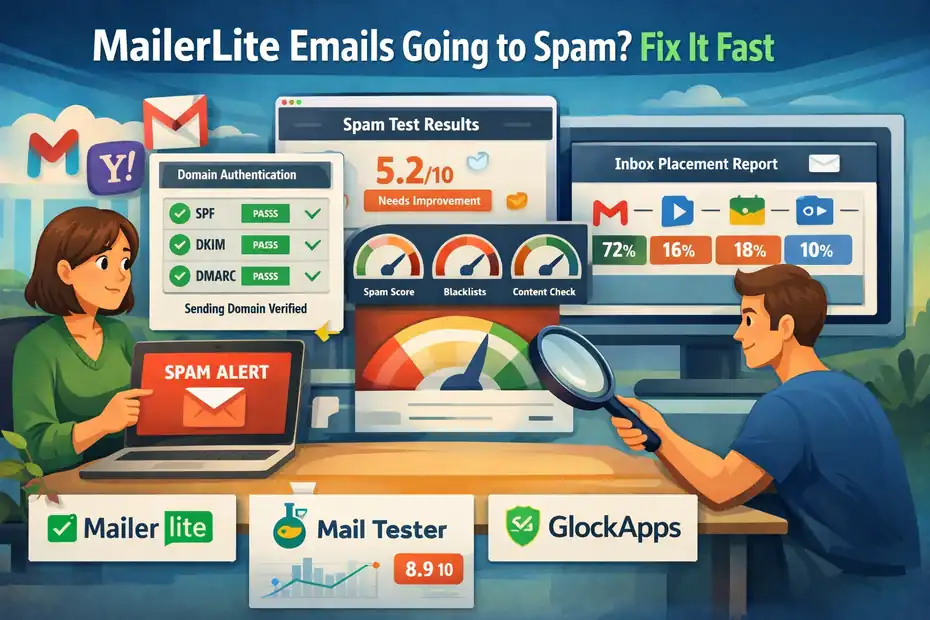
One of the most common causes of mailerlite emails going to spam is missing or incorrect domain authentication. Email providers like Gmail, Outlook, and Yahoo check authentication records to confirm that the email is truly coming from your domain and not from a spammer pretending to be you.
Think of authentication like showing ID at airport security. If the ID checks out, your email is much more likely to reach the inbox.
Set Up SPF Records To Verify Your Sending Domain
SPF (Sender Policy Framework) tells email providers which servers are allowed to send emails on behalf of your domain.
Without SPF, spam filters may assume your emails are forged.
Here’s the simple version of how SPF works:
- You add an SPF record inside your domain’s DNS settings.
- The record lists MailerLite’s authorized sending servers.
- Email providers check that record every time you send a campaign.
In MailerLite, the SPF value usually looks similar to this:
v=spf1 include:_spf.mlsend.com ~all
Where you add this record depends on your domain host. For example:
| Domain Provider | Where To Add SPF |
|---|---|
| Cloudflare | DNS → Add TXT Record |
| Namecheap | Advanced DNS |
| GoDaddy | DNS Management |
| Hostinger | DNS Zone Editor |
In my experience, SPF alone won’t completely solve mailerlite emails going to spam, but it’s the first foundational signal inbox providers expect.
Once SPF is active, it tells Gmail and Outlook: Yes, MailerLite is authorized to send emails from this domain.
Configure DKIM Signing Inside MailerLite Settings
DKIM (DomainKeys Identified Mail) adds a digital signature to every email you send.
That signature proves that:
- Your email content hasn’t been altered
- The message really came from your domain
Inside MailerLite, enabling DKIM usually requires adding a CNAME record to your DNS.
The process normally looks like this:
- Go to MailerLite → Domains
- Add your sending domain
- Copy the DKIM CNAME records MailerLite provides
- Paste them into your DNS provider
Example DKIM structure:
| Record Type | Host | Value |
|---|---|---|
| CNAME | ml._domainkey | dk.mlsend.com |
Once DKIM is active, MailerLite cryptographically signs each email.
From what I’ve seen, enabling DKIM alone can improve inbox placement significantly—especially for Gmail users.
Add DMARC Policy To Strengthen Sender Trust
DMARC is the third layer of authentication. It tells email providers what to do if SPF or DKIM fails. Without DMARC, providers are left guessing.
A basic DMARC record looks like this:
v=DMARC1; p=none; rua=mailto:you@yourdomain.com
Let me break it down:
| Element | What It Does |
|---|---|
| v=DMARC1 | Defines the DMARC version |
| p=none | Monitoring mode (no blocking yet) |
| rua | Where reports are sent |
I usually recommend starting with p=none because it allows you to monitor authentication without blocking legitimate emails.
Later you can move to stricter policies like:
p=quarantinep=reject
DMARC gives inbox providers strong confidence that your emails are legitimate.
And yes—this can absolutely reduce mailerlite emails going to spam.
Verify Custom Domain Instead Of Free Email Addresses
This mistake is surprisingly common.
Many people send campaigns from addresses like:
yourbrand@gmail.com
yourstore@yahoo.com
Spam filters hate this.
Why?
Because Gmail or Yahoo didn’t authorize MailerLite to send emails on their behalf.
Instead, always use a domain-based sender like:
hello@yourdomain.com
newsletter@yourdomain.com
support@yourdomain.com
This allows you to authenticate the domain properly with:
- SPF
- DKIM
- DMARC
In my experience, switching from a Gmail sender to a domain sender can dramatically improve inbox placement.
It’s a small change that signals professionalism and trust to email providers.
Test Authentication With Mail Tester And GlockApps
After setting up authentication, you should always test it.
Two tools I personally recommend are:
| Tool | What It Checks | Best Use |
|---|---|---|
| Mail Tester | Spam score analysis | Quick campaign tests |
| GlockApps | Inbox placement testing | Advanced deliverability checks |
Here’s how a quick test works:
- Send a test email to the address Mail Tester provides.
- The tool scans your message.
- It generates a spam score.
Typical issues it flags include:
- Missing DKIM
- Broken SPF
- Blacklisted domain
- Spam trigger words
GlockApps goes even deeper by showing where your email lands:
- Gmail Inbox
- Gmail Promotions
- Spam folder
- Outlook inbox
- Yahoo spam
If you’re serious about fixing mailerlite emails going to spam, testing deliverability should become part of your campaign routine.
Repair Sender Reputation That Triggers Spam Filters
Even if your technical setup is perfect, sender reputation can still cause emails to land in spam. Email providers track how recipients interact with your messages and build a reputation score around your domain and IP address.
If engagement drops or complaints increase, inbox providers may start filtering your emails automatically.
Understand How Sender Reputation Impacts Deliverability
Sender reputation is basically your email trust score.
Email providers measure signals like:
- Open rates
- Click rates
- Spam complaints
- Bounce rates
- Unsubscribe patterns
For example:
| Metric | Healthy Range |
|---|---|
| Spam complaints | Below 0.1% |
| Bounce rate | Below 2% |
| Open rate | 20–40% |
Imagine you send emails to 10,000 subscribers but only 500 open them. That tells Gmail your emails may not be wanted.
Over time, this behavior can cause mailerlite emails going to spam even if your content is legitimate.
I’ve seen accounts recover simply by focusing on sending emails only to engaged subscribers.
Check Domain Reputation Using Google Postmaster Tools
One of the best free tools for monitoring email reputation is Google Postmaster Tools.
It provides detailed data on:
- Domain reputation
- Spam complaint rates
- Authentication status
- Gmail delivery errors
Typical reputation levels include:
| Reputation Level | Meaning |
|---|---|
| High | Emails trusted |
| Medium | Mostly safe |
| Low | Risk of spam filtering |
| Bad | Emails likely blocked |
To start using it:
- Add your sending domain
- Verify DNS ownership
- Monitor reputation dashboards
If your reputation drops to Low, Gmail will likely begin filtering campaigns. This is often the hidden cause behind persistent mailerlite emails going to spam issues.
Warm Up New Domains Before Sending Large Campaigns
If you start sending thousands of emails from a brand-new domain, spam filters get suspicious. It looks like spam behavior.
Instead, warm up your domain gradually.
Here’s a simple sending schedule many marketers follow:
| Day | Emails Sent |
|---|---|
| Day 1 | 50 |
| Day 2 | 100 |
| Day 3 | 250 |
| Day 5 | 500 |
| Day 7 | 1000+ |
During warm-up:
- Send emails only to engaged subscribers
- Encourage replies
- Avoid promotional blasts
Engagement signals help build domain trust quickly.
Reduce Complaint Rates From Unengaged Subscribers
Spam complaints are one of the strongest negative signals. Even a small number can damage your sender reputation.
For example: If 20 people mark your email as spam out of 10,000 sends, Gmail starts paying attention.
Ways to reduce complaints:
- Use clear unsubscribe links
- Send fewer emails to inactive users
- Set clear expectations during signup
- Avoid misleading subject lines
In my experience, complaint rates spike when people forget they subscribed.
A simple welcome email explaining what they’ll receive can reduce complaints significantly.
Avoid Sudden Sending Volume Spikes That Look Suspicious
Spam filters watch sending patterns.
If your domain normally sends:
- 500 emails per week
and suddenly sends:
- 20,000 emails overnight
It can trigger spam filters instantly.
To prevent this:
- Increase volume gradually
- Send campaigns in batches
- Maintain a consistent sending schedule
Consistency builds trust with inbox providers.
Clean Your Email List To Prevent Spam Complaints
List quality is one of the biggest factors behind mailerlite emails going to spam. Even the best email platform cannot save a list filled with inactive or low-quality contacts.
Healthy lists lead to higher engagement, which signals to email providers that your messages are wanted.
Remove Inactive Subscribers Before Sending Campaigns
Inactive subscribers quietly destroy deliverability. If someone hasn’t opened your emails in 6–12 months, they’re unlikely to start now.
Instead of repeatedly emailing them, I recommend running a simple re-engagement campaign.
For example:
Subject line ideas:
- “Still want to hear from us?”
- “Quick question before we remove you”
- “Do you still want these emails?”
If they don’t respond, it’s usually best to remove them.
Cleaner lists often produce better metrics like:
| Metric | Before Cleaning | After Cleaning |
|---|---|---|
| Open rate | 12% | 35% |
| Click rate | 2% | 8% |
| Spam complaints | Higher | Lower |
Engagement signals improve inbox placement.
Identify Hard Bounces And Suppressed Contacts
A hard bounce happens when an email address is invalid or no longer exists.
Examples include:
- Misspelled addresses
- Deleted inboxes
- Fake signup emails
MailerLite automatically suppresses many of these addresses, but it’s still worth reviewing your bounce reports.
Why this matters: High bounce rates signal poor list hygiene.
Spam filters often interpret this as risky sending behavior.
Stop Buying Email Lists That Damage Deliverability
Buying email lists almost always leads to spam problems.
Those contacts:
- Never asked for your emails
- Don’t recognize your brand
- Are more likely to report spam
This destroys sender reputation quickly.
From what I’ve seen, even one purchased list can cause mailerlite emails going to spam for months afterward.
Organic list growth always performs better.
Use Double Opt-In To Confirm Subscriber Intent
Double opt-in requires subscribers to confirm their email before joining your list.
The process looks like this:
- Someone signs up on your form.
- They receive a confirmation email.
- They click a link to verify their subscription.
Benefits include:
- Fewer fake emails
- Higher engagement
- Lower complaint rates
MailerLite makes this easy to enable inside form settings.
Segment Engaged Readers To Improve Inbox Placement
One advanced tactic many marketers overlook is sending emails first to your most engaged subscribers.
Why this works:
Inbox providers watch early engagement signals.
If your most active readers open and click quickly, it sends positive signals to spam filters.
You can create segments like:
| Segment | Criteria |
|---|---|
| Highly Engaged | Opened last 5 emails |
| Recently Active | Opened in 30 days |
| At Risk | No opens in 90 days |
Send campaigns to engaged users first, then expand to the rest of your list.
This strategy can dramatically reduce mailerlite emails going to spam over time.
Improve Email Content That Spam Filters Analyze
Even if your domain authentication is perfect, the actual content of your email still plays a major role in whether it lands in the inbox or spam. Modern spam filters scan your subject line, links, formatting, and even the ratio of text to images.
If you’re dealing with mailerLite emails going to spam, this section is often where the hidden issues live.
Let’s break down the practical content fixes that make a real difference.
Avoid Spam Trigger Words That Lower Inbox Scores
Spam filters analyze wording patterns that commonly appear in phishing or scam emails. When those phrases appear repeatedly, they raise a red flag.
That doesn’t mean certain words are “banned,” but using them aggressively can hurt deliverability.
Examples of common spam-trigger phrases:
- “Make money fast”
- “100% free”
- “Limited time offer!!!”
- “Act now”
- “No risk”
- “Guaranteed profit”
Notice the pattern: Overhyped, urgent, and sales-heavy language.
Instead, I suggest writing subject lines and body text the way you’d write a normal message to a friend.
For example:
| Risky Phrase | Better Alternative |
|---|---|
| Make money fast | Simple way I increased revenue |
| Act now before it’s gone | Quick update before it closes |
| 100% FREE | Free resource I created |
In my experience, natural language performs better anyway. People trust emails that sound human.
Balance Text And Images To Prevent Spam Flags
Another common reason behind mailerlite emails going to spam is image-heavy emails.
Many promotional templates rely heavily on graphics. Spam filters sometimes see this as suspicious because scammers hide text inside images.
A good rule of thumb is: Keep at least 60% text and 40% images.
Here’s a simple guideline I follow:
| Element | Recommended Usage |
|---|---|
| Images | 1–3 per email |
| Text paragraphs | 2–5 sections |
| Buttons | 1–2 CTAs |
| Image-only emails | Avoid |
For example, imagine you’re sending a product launch email.
Instead of:
- A giant promotional banner
- One button
- No text explanation
Add a short explanation about:
- What the product does
- Who it’s for
- Why you created it
That small change gives spam filters more context.
Write Subject Lines That Avoid Promotional Filters
Subject lines are one of the strongest spam signals. Overly promotional subject lines trigger filters used by Gmail and Outlook.
Examples of subject lines that often trigger spam filtering:
- “Huge discount today!!!”
- “You won’t believe this deal”
- “Earn money instantly”
Instead, try curiosity-based or conversational subject lines.
Here are examples that usually perform better:
| Spammy Subject | Better Version |
|---|---|
| Huge discount today!!! | Quick update about the new offer |
| Make money online fast | Something interesting I tested this week |
| Don’t miss this deal | A quick heads-up for you |
In my experience, the best-performing emails often look like personal emails, not advertisements.
Limit Excessive Links And Affiliate Tracking URLs
Spam filters closely analyze links inside your email. Too many links can trigger spam filters.
Especially when:
- Multiple affiliate links are used
- URL shorteners are used
- Tracking parameters look suspicious
I usually follow this simple rule:
Keep emails under 3–5 links when possible.
Example structure that works well:
- One main CTA button
- One contextual link inside the text
- One unsubscribe link (required)
Affiliate-heavy emails are one of the fastest ways to trigger mailerlite emails going to spam. If you promote affiliate offers, try this approach instead:
Send readers to your own article or landing page first, then place affiliate links there.
This keeps the email cleaner and safer.
Add Plain Text Versions For Better Deliverability
Every email should include a plain text version. Plain text emails are exactly what they sound like: Emails without design elements or formatting.
Spam filters like plain text emails because they resemble normal conversations. MailerLite automatically generates a plain text version, but I recommend editing it manually.
Here’s why:
Auto-generated versions sometimes contain:
- Broken formatting
- Too many links
- Awkward spacing
A clean plain text version should look like this:
Hi John,I wanted to share a quick update about the new guide we released today.You can read it here:
[link]Let me know what you think.– Alex
Simple emails like this often land in the inbox more reliably than highly designed newsletters.
Optimize MailerLite Settings That Affect Deliverability
Beyond content and list hygiene, MailerLite’s internal settings also influence whether emails reach the inbox. Many creators overlook these settings, even though they can dramatically impact deliverability.
If your mailerLite emails going to spam, these configuration tweaks can help stabilize your sending reputation.
Use Dedicated Sending Domains Instead Of Shared Ones
MailerLite allows users to send emails through shared infrastructure.
This works fine for beginners, but it also means other senders affect your reputation. A dedicated sending domain isolates your reputation.
Example:
Instead of sending from:
newsletter@yourdomain.com
You might use a dedicated domain like:
mail.yourdomain.com
Benefits include:
- Better reputation control
- Improved deliverability
- Reduced risk from other senders
I usually recommend this setup once your list reaches 5,000+ subscribers.
Enable MailerLite Bounce And Complaint Handling
MailerLite automatically tracks:
- Hard bounces
- Spam complaints
- unsubscribes
But many users never check these reports.
Inside your MailerLite dashboard, you can review:
- Bounce reports
- complaint logs
- suppression lists
Healthy benchmarks look like this:
| Metric | Ideal Range |
|---|---|
| Bounce rate | Below 2% |
| Spam complaints | Below 0.1% |
| Unsubscribe rate | Below 1% |
If complaints rise, it’s a strong indicator of why mailerLite emails going to spam.
Configure Custom Tracking Domains For Better Trust
Tracking links often look suspicious because they redirect through MailerLite servers.
Example:
https://click.mlsend.com/xyz123
Spam filters sometimes distrust these.
MailerLite allows you to configure a custom tracking domain, such as:
track.yourdomain.com
This keeps links aligned with your brand.
Benefits include:
- Higher trust signals
- Better brand consistency
- Reduced spam filtering
From what I’ve seen, this is one of the most overlooked deliverability improvements.
Send Campaigns From Consistent Sender Identities
Consistency builds trust with both subscribers and spam filters. Changing sender names frequently can confuse inbox providers.
For example:
Bad practice:
- Alex Marketing
- Team Newsletter
- Customer Success
- Support Team
Better practice:
Always send from something consistent like:
Alex from YourBrand
or
YourBrand Newsletter
Consistency improves recognition and engagement.
Monitor Deliverability Reports Inside MailerLite
MailerLite provides built-in analytics for every campaign.
Key metrics to monitor include:
| Metric | What It Reveals |
|---|---|
| Open rate | Inbox placement quality |
| Click rate | Engagement level |
| Bounce rate | List health |
| Spam complaints | Reputation damage |
If open rates suddenly drop, that’s often a signal of deliverability issues.
I recommend reviewing these metrics after every campaign.
Monitor Inbox Placement Using Deliverability Testing Tools
Even experienced email marketers don’t rely on guesswork. They test campaigns before sending them to thousands of subscribers.
If you’re struggling with mailerLite emails going to spam, deliverability tools can quickly reveal what’s wrong.
Let me walk you through the most helpful ones.
Test Campaigns With Mail Tester Before Sending
Mail Tester is one of the simplest deliverability tools available.
Here’s how it works:
- Visit MailTester.
- Copy the test email address provided.
- Send your campaign draft to that address.
- Review the spam score report.
The report analyzes:
- Authentication setup
- spam trigger words
- blacklists
- link reputation
Typical score scale:
| Score | Meaning |
|---|---|
| 9–10 | Excellent |
| 7–8 | Good |
| 5–6 | Needs improvement |
| Below 5 | High spam risk |
I personally run every new campaign through Mail Tester before sending.
Use GlockApps To Preview Inbox Placement Results
GlockApps takes testing further by simulating delivery across multiple inbox providers.
It shows where your email lands:
- Gmail inbox
- Gmail promotions
- Outlook spam
- Yahoo inbox
This is incredibly useful because not all inbox providers behave the same.
For example, a campaign may land in:
- Gmail inbox
- Outlook spam
GlockApps helps you catch these issues early.
Analyze Spam Filter Reports From SpamAssassin
SpamAssassin is one of the most widely used spam filtering systems. Many hosting providers rely on it.
SpamAssassin assigns a spam score based on rules like:
- suspicious phrases
- missing authentication
- image-heavy emails
Typical scoring:
| Score | Interpretation |
|---|---|
| 0–3 | Safe |
| 3–5 | Medium risk |
| 5+ | Likely spam |
If your email scores above 5, it may trigger spam filters.
Check Blacklist Status With MXToolbox
Sometimes emails go to spam because your domain appears on an email blacklist. MXToolbox scans dozens of blacklist databases.
Common blacklist sources include:
- Spamhaus
- Barracuda
- SORBS
Fortunately, most blacklist listings can be resolved by:
- fixing authentication
- cleaning email lists
- reducing complaints
Track Reputation Signals Through Google Postmaster
Google Postmaster Tools provides valuable reputation data for Gmail.
It tracks:
- domain reputation
- spam rate
- feedback loops
- authentication status
Reputation ratings include:
| Rating | Deliverability Impact |
|---|---|
| High | Excellent inbox placement |
| Medium | Moderate filtering |
| Low | Spam folder risk |
| Bad | Emails blocked |
If your Gmail reputation drops, that often explains why mailerLite emails going to spam.
Prevent Future MailerLite Emails Going To Spam Issues
Fixing deliverability once is helpful. Preventing the problem long-term is even better. Maintaining a healthy email system ensures your campaigns consistently reach inboxes.
Build Engagement-Based Segments For Regular Campaigns
Sending emails to everyone on your list might seem logical. But engagement matters more than list size.
I recommend creating segments like:
| Segment | Criteria |
|---|---|
| Highly engaged | Opened last 5 emails |
| Moderately active | Opened within 30 days |
| At risk | No opens in 90 days |
Send campaigns to engaged subscribers first.
This boosts positive signals.
Send Emails On A Predictable Publishing Schedule
Inbox providers track sending behavior. Irregular schedules sometimes look suspicious.
Instead of sending randomly, choose a predictable pattern.
Examples:
- Weekly newsletter
- Biweekly updates
- Monthly announcements
Consistency builds trust.
Encourage Subscribers To Whitelist Your Email Address
Whitelisting means adding your email to the recipient’s contact list. This signals to inbox providers that the user trusts your emails.
A simple line in your welcome email works well: “Add us to your contacts so you never miss an update.”
It’s a small trick, but it improves deliverability.
Track Open And Click Signals To Maintain Reputation
Engagement metrics influence inbox placement.
Higher engagement signals include:
- Opens
- clicks
- replies
If engagement drops, it can eventually lead to mailerLite emails going to spam.
That’s why monitoring analytics regularly matters.
Create Re-Engagement Campaigns Before Removing Users
Instead of immediately deleting inactive subscribers, try a re-engagement campaign.
Example sequence:
Email 1: “Still interested in these emails?”
Email 2: “Should I remove you from the list?”
Email 3: “Last chance to stay subscribed.”
Subscribers who don’t respond can be safely removed. This keeps your list healthy and improves deliverability.
FAQ
Why Are My MailerLite Emails Going To Spam?
MailerLite emails going to spam usually happen because of missing domain authentication, poor sender reputation, low engagement, or spam-like email content. Email providers such as Gmail analyze these signals to decide inbox placement. Fixing SPF, DKIM, list quality, and subject lines often resolves the issue quickly.
How Do I Stop MailerLite Emails Going To Spam?
To stop MailerLite emails going to spam, authenticate your domain with SPF, DKIM, and DMARC, send emails from a custom domain, clean inactive subscribers, and avoid spam trigger words. Consistent sending behavior and strong engagement signals also improve inbox placement over time.
Does Domain Authentication Fix MailerLite Spam Issues?
Yes. Domain authentication is one of the most important fixes for mailerlite emails going to spam. Setting up SPF, DKIM, and DMARC proves to email providers that your messages are legitimate. Without authentication, many inbox providers automatically treat your emails as suspicious.
Can A Bad Email List Cause MailerLite Emails To Go To Spam?
Yes. Poor list quality is a major reason for mailerlite emails going to spam. Inactive subscribers, purchased lists, and invalid email addresses increase bounce rates and spam complaints. Cleaning your list and using double opt-in helps improve engagement and deliverability.
How Can I Test If My MailerLite Emails Will Go To Spam?
You can test mailerlite emails going to spam using deliverability tools like Mail Tester or GlockApps. These tools analyze spam scores, authentication status, and inbox placement across providers like Gmail and Outlook, helping you identify problems before sending campaigns to your full list.

Juxhin B is a digital marketing researcher and founder of JAK Digital Hub, specializing in email marketing software, marketing automation platforms, and digital growth tools. His work focuses on software testing, platform comparisons, and real-world performance analysis to help businesses choose the right marketing technology.
Related posts:
 Should I Leave Moosend or Stick With It? Clear Criteria
 How To Migrate From Omnisend Without Losing Data Or Revenue
 Email Marketing Jobs For Startups Hiring Remote Talent
 Email Leads Not Converting? Fix It With This Framework
 Email Leads Cost For 20K Contacts: What Should You Pay?
 Is It Hard to Migrate From Moosend? Honest Breakdown