Table of Contents
Some links on JAK Digital Hub are affiliate links, meaning we may earn a small commission at no extra cost to you. Read full disclaimer.
How to migrate from Omnisend is a question that usually appears at a stressful moment in a business. Maybe your email costs keep climbing, automation feels limited, or you’re worried about deliverability and want more control over your marketing stack.
The challenge isn’t just moving tools—it’s protecting your subscriber data, automation flows, segmentation logic, and most importantly your revenue while everything transitions. A poorly planned migration can break campaigns, lose historical insights, and damage sender reputation overnight.
In this guide, I’ll walk you through exactly how to migrate from Omnisend without losing data or revenue, including the safest migration process, the best alternative platforms, and the technical steps most businesses overlook.
Audit Your Omnisend Account Before Starting Migration
Before you actually start the process of how to migrate from Omnisend, the most important step is auditing your existing account. Skipping this stage is the fastest way to lose subscriber data, break automations, or damage your email revenue during the transition.
Think of this step like packing your house before moving. If you rush it, things get lost. But if you organize everything first, the move becomes surprisingly smooth.
In my experience working with email platforms, the biggest migration mistakes happen because people underestimate how much data lives inside their marketing stack: segments, behavioral triggers, automation logic, tags, and revenue attribution.
Let’s break down exactly what you should extract and document before touching another platform.
Export Subscriber Lists With Tags, Segments, And Consent Data
Your subscriber list is the heart of your email business. Losing segmentation or consent data can seriously impact deliverability and compliance.
Inside Omnisend, subscriber data is much more than just email addresses. Each contact may contain:
- Tags
- Segment membership
- Signup source
- Purchase behavior
- Consent records
- Custom fields
- Campaign engagement history
When learning how to migrate from Omnisend, your goal is exporting every piece of subscriber metadata, not just the email column.
Here’s how to do it properly.
Step-by-step export process:
- Go to Audience → Contacts in Omnisend.
- Select Export Contacts.
- Choose All Contacts.
- Include:
- Tags
- Custom properties
- Signup source
- Consent timestamp
- Export as CSV.
I strongly recommend exporting segments separately as well.
For example:
| Segment | Why It Matters |
|---|---|
| Engaged subscribers (last 30 days) | Used for warming up new sending domain |
| VIP customers | High revenue audience |
| Inactive subscribers | Used for re-engagement campaigns |
Imagine you run an ecommerce store with 40,000 subscribers.
If you only export emails and lose segmentation, your next campaign will treat VIP buyers and inactive users the same, which can hurt open rates and revenue.
Preserving segmentation keeps your marketing intelligence intact.
Download Campaign History For Performance Benchmarking
One thing many marketers forget during migration is campaign history.
While you won’t import historical campaigns into your new platform, you absolutely need the performance data.
Why?
Because once you migrate, you’ll want to compare:
- Open rates
- Click-through rates
- Conversion rates
- Revenue per email
- Deliverability metrics
Without this benchmark, it’s impossible to know whether your new platform performs better or worse.
Here’s what I suggest exporting:
| Metric | Why It Matters |
|---|---|
| Open rates | Indicates deliverability health |
| Click rates | Measures email engagement |
| Revenue per campaign | Tracks profitability |
| Top-performing campaigns | Helps recreate winning emails |
| Subject line performance | Useful for future A/B testing |
Inside Omnisend, go to: Campaigns → Reports → Export Data
Download reports from at least:
- Last 90 days
- Last 12 months if possible
This gives you a reliable performance baseline.
For example, if your abandoned cart emails generated $8,000/month, you’ll want to confirm the new platform maintains similar performance.
Migration without benchmarks is like flying blind.
Document Automation Flows, Triggers, And Email Sequences
Automations are where most ecommerce revenue actually comes from.
In many stores, 30–50% of email revenue comes from automated flows, not newsletters.
That means your migration strategy must carefully recreate them.
Before switching platforms, open every automation in Omnisend and document:
- Trigger event
- Delay timing
- Conditional logic
- Email content
- Exit conditions
- Filters and segmentation rules
A simple spreadsheet works well for this.
Example automation documentation:
| Automation | Trigger | Delay | Emails |
|---|---|---|---|
| Welcome Flow | Signup form | Immediate | 3 emails |
| Abandoned Cart | Cart started | 1 hour | 2 emails |
| Post Purchase | Order completed | 3 days | 4 emails |
If you skip this step, rebuilding automation later becomes confusing.
I’ve seen businesses accidentally break cart recovery flows simply because they forgot the trigger delay timing.
Small details matter here.
Identify Revenue-Critical Automations That Must Transfer
Not all automations are equally important. Some are “nice to have.” Others directly generate thousands of dollars every month.
Your goal is identifying revenue-critical flows first so you can prioritize them during migration.
Typically, the most valuable ecommerce automations include:
| Automation | Typical Revenue Impact |
|---|---|
| Abandoned cart | 10–20% of recovered sales |
| Welcome series | Highest open rate campaigns |
| Browse abandonment | Captures interested visitors |
| Post-purchase upsells | Increases customer lifetime value |
| Re-engagement flow | Cleans inactive lists |
Let’s say your abandoned cart sequence recovers $4,500/month. That automation should be rebuilt before you send any campaigns on the new platform.
In my opinion, these are the flows you must migrate first:
- Welcome series
- Cart abandonment
- Post purchase follow-up
- Browse abandonment
Everything else can wait.
This prioritization protects your revenue during the migration process.
Review Custom Fields And Ecommerce Event Tracking Setup
Custom fields are often the most fragile part of an email migration.
These fields might include things like:
- First purchase date
- Favorite product category
- Customer lifetime value
- Loyalty status
- Product interests
These fields power segmentation and personalization.
For example:
“Hi Sarah, since you bought running shoes last month…”
That personalization works because of custom properties.
Before migrating, make a list of all fields used in:
- segmentation
- automation filters
- personalization tokens
- ecommerce triggers
Example mapping table:
| Omnisend Field | Purpose | Migration Priority |
|---|---|---|
| purchase_count | VIP segmentation | High |
| total_spent | Loyalty automation | High |
| last_product_viewed | Browse abandonment | Medium |
| signup_source | Lead attribution | Medium |
You also need to review event tracking.
Events include:
- Product viewed
- Added to cart
- Purchase completed
- Category viewed
These events usually come from your ecommerce platform integration.
When you migrate tools, these events must reconnect properly, or automation flows will stop triggering.
This step might feel tedious, but it prevents broken automations later.
Choose The Best Omnisend Alternative For Your Needs
Once your audit is complete, the next step in how to migrate from Omnisend is choosing the right platform to replace it. Not every email marketing tool is built for the same type of business.
Some focus on ecommerce automation. Others are better for creators, bloggers, or smaller marketing teams.
From what I’ve seen, most Omnisend users switch because of:
- rising pricing as subscriber lists grow
- automation limitations
- deliverability concerns
- lack of advanced segmentation
Let’s walk through the most common migration paths and when each makes sense.
Migrating From Omnisend To Klaviyo For Advanced Ecommerce Automation
If you run an ecommerce store, Klaviyo is the most common Omnisend migration destination.
It’s built specifically for ecommerce data and behavioral marketing.
What makes it powerful is the depth of customer tracking.
Klaviyo can track events like:
- product views
- category browsing
- cart additions
- purchases
- repeat purchases
- predicted lifetime value
This allows extremely precise segmentation.
For example:
“Customers who viewed sneakers twice in the last 7 days but didn’t purchase.”
That level of targeting often increases email revenue significantly.
Here’s a quick feature comparison.
| Feature | Omnisend | Klaviyo |
|---|---|---|
| Ecommerce tracking | Good | Advanced |
| Automation logic | Moderate | Highly advanced |
| Segmentation | Basic | Behavioral + predictive |
| Personalization | Standard | Deep dynamic data |
In many ecommerce stores, switching to Klaviyo increases email revenue by 15–30% simply because segmentation becomes much more precise.
However, Klaviyo can be expensive at higher subscriber counts.
So it’s best for stores generating consistent ecommerce revenue.
Moving From Omnisend To Brevo For Lower Email Marketing Costs
If pricing is your biggest concern, Brevo (formerly Sendinblue) is one of the most cost-effective alternatives.
Unlike many platforms that charge based on subscribers, Brevo often charges based on emails sent per month.
This can dramatically reduce costs.
For example:
| Platform | 50,000 Subscribers Estimated Cost |
|---|---|
| Omnisend | $300–$400/month |
| Klaviyo | $400+/month |
| Brevo | $65–$100/month |
That pricing difference is significant for growing businesses.
Brevo also includes extra tools:
- SMS marketing
- transactional email
- CRM features
- landing page builder
It’s especially good if you want an all-in-one marketing platform rather than separate tools.
The automation builder is simpler than Klaviyo but still powerful enough for:
- welcome sequences
- cart recovery
- promotional campaigns
For many small ecommerce stores, Brevo provides the best balance between cost and functionality.
Switching From Omnisend To Kit For Creator-Focused Email Funnels
If you’re a blogger, content creator, or course seller, Kit (formerly ConvertKit) is often the better fit.
Kit focuses heavily on:
- audience segmentation
- creator monetization
- email funnels
- digital product sales
It’s designed for creators who rely on:
- newsletters
- digital products
- memberships
- affiliate marketing
Kit’s automation builder is extremely visual and easy to understand.
Example creator workflow:
- Reader downloads a free ebook.
- They enter a 5-day email sequence.
- They receive a course offer on day 6.
- Buyers move into a customer segment.
This kind of funnel is where Kit shines.
While it’s not designed for deep ecommerce product tracking like Klaviyo, it excels at content-driven email marketing.
Many bloggers prefer it because the interface is much simpler.
Transitioning From Omnisend To Mailchimp For Simpler Marketing Stacks
Mailchimp is still one of the most recognizable email marketing platforms.
Some businesses migrate from Omnisend to Mailchimp simply because:
- the interface is familiar
- the learning curve is low
- it integrates with many tools
Mailchimp works well for:
- small businesses
- agencies managing client campaigns
- marketing teams running newsletters
However, automation depth is more limited compared to platforms like Klaviyo.
Here’s a quick overview.
| Feature | Omnisend | Mailchimp |
|---|---|---|
| Ecommerce automation | Strong | Moderate |
| Campaign builder | Good | Excellent |
| Segmentation | Good | Basic |
| Integrations | Many | Very large ecosystem |
If your strategy relies mostly on campaigns rather than complex automation, Mailchimp can be a simple transition.
Comparing Deliverability, Pricing, And Automation Capabilities
Before choosing your final platform, it helps to compare them side by side.
Here’s a simplified overview.
| Platform | Best For | Automation Power | Pricing Level |
|---|---|---|---|
| Klaviyo | Ecommerce brands | Very high | Expensive |
| Brevo | Cost efficiency | Medium | Affordable |
| Kit | Creators & bloggers | High | Moderate |
| Mailchimp | Small businesses | Medium | Moderate |
From what I’ve seen in real migrations:
- Klaviyo → Best revenue optimization for ecommerce
- Brevo → Best budget-friendly option
- Kit → Best for content creators
- Mailchimp → Best simple campaign workflows
Choosing the right platform early makes the rest of the migration much easier.
Export All Data From Omnisend Without Losing Information
Once you’ve selected your new platform, the next stage in how to migrate from Omnisend is exporting every piece of data safely.
Your goal is simple: move your marketing intelligence, not just your email list.
Many migrations fail because people export only contacts while forgetting:
- automation templates
- campaign analytics
- suppression lists
- signup forms
- segmentation logic
Let’s go step-by-step.
Export Contacts With Segments, Tags, And Custom Fields
The first export is your complete contact database.
Inside Omnisend: Go to: Audience → Contacts → Export
Make sure the export includes:
- email address
- tags
- segments
- signup source
- consent timestamp
- custom fields
- purchase history
This creates a CSV file you’ll later import into your new platform.
I strongly suggest exporting segments separately.
Segments often include:
- engaged subscribers
- VIP customers
- inactive users
- repeat buyers
These segments help maintain targeted campaigns during migration.
Download Automation Templates And Email Designs
Your email templates cannot automatically transfer between platforms.
But you can still preserve them.
Inside each Omnisend automation:
- Open the automation flow
- Open each email
- Copy HTML code or design elements
Save:
- subject lines
- email copy
- images
- CTA buttons
- layout structure
This makes recreating emails in the new platform much faster.
Extract Campaign Analytics And Revenue Attribution Data
Campaign analytics are extremely valuable.
Export reports that include:
- revenue per email
- click-through rate
- open rate
- unsubscribe rate
- conversion rate
Example export periods:
- last 90 days
- last 6 months
- last 12 months
These metrics allow you to compare performance before and after migration.
Export Suppression Lists To Protect Deliverability Reputation
Suppression lists include:
- unsubscribed contacts
- bounced emails
- spam complaints
Importing these lists into your new platform is essential.
If you accidentally email these users again, you risk:
- spam complaints
- deliverability damage
- legal compliance issues
Always export suppression lists before closing your Omnisend account.
Save Signup Forms, Landing Pages, And Embedded Widgets
Many businesses forget this step.
Omnisend often hosts:
- popup forms
- embedded forms
- landing pages
- lead capture widgets
These forms are connected to automations and segmentation rules.
Before migration:
- screenshot the designs
- copy form fields
- record triggers and targeting rules
Then recreate them in your new platform.
Once the migration is complete, replace the old form code on your website.
Prepare Your New Email Platform Before Importing Data
Before you upload a single contact, your new email platform must be properly configured. This stage is one of the most overlooked parts of how to migrate from Omnisend, and it’s also where many businesses accidentally damage their email deliverability.
Think of it this way: importing 50,000 contacts into an unprepared system is like opening a new restaurant and inviting thousands of guests before the kitchen is ready.
Let me walk you through the essential setup steps that ensure your migration goes smoothly and your emails keep landing in the inbox.
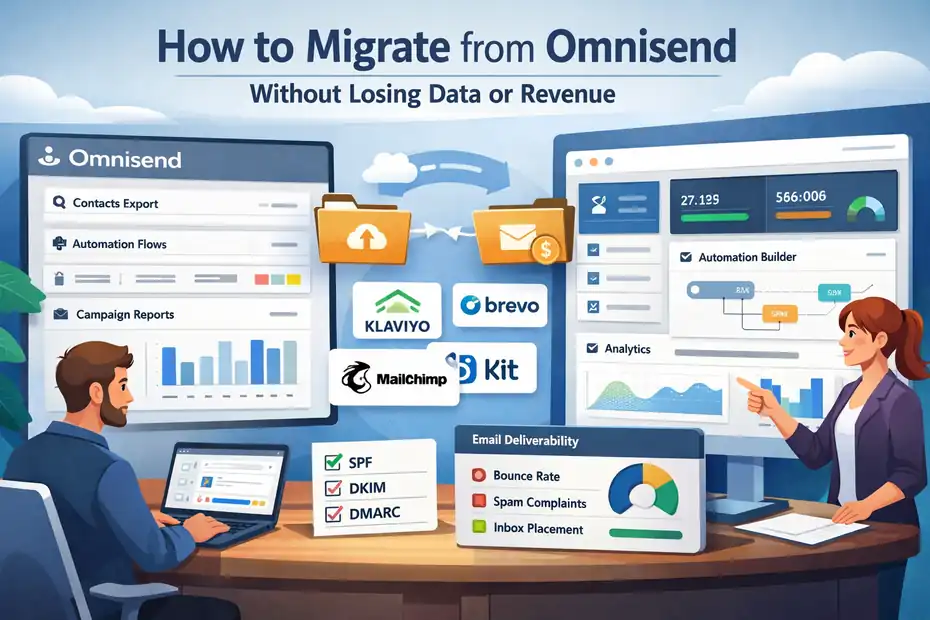
Authenticate Domains Using SPF, DKIM, And DMARC Records
Domain authentication sounds technical, but it’s actually one of the most important steps for protecting your sender reputation.
In simple terms, authentication tells email providers like Gmail, Outlook, and Yahoo that your new platform is authorized to send emails from your domain.
Without authentication, your campaigns are far more likely to land in spam folders.
Most modern email marketing platforms—including Klaviyo, Brevo, Kit, and Mailchimp—require three authentication records:
| Authentication | What It Does | Why It Matters |
|---|---|---|
| SPF | Verifies which servers can send email for your domain | Prevents spoofing |
| DKIM | Adds a digital signature to your emails | Confirms authenticity |
| DMARC | Tells inbox providers how to handle failures | Improves deliverability |
Here’s how to set it up:
- Go to your new email platform’s Domain Authentication settings.
- Copy the DNS records provided.
- Log into your domain registrar (for example Cloudflare, GoDaddy, or Namecheap).
- Add the SPF, DKIM, and DMARC records.
- Wait for verification.
In my experience, this process usually takes 10–30 minutes, though DNS changes can take a few hours to fully propagate.
A small tip: send a test email to a Gmail account after authentication and check the email headers. If SPF and DKIM pass, your setup is correct.
Recreate Custom Fields And Subscriber Properties First
Before importing contacts, you need to rebuild your custom fields in the new platform.
Custom fields are additional data attached to subscribers. They allow you to personalize emails and build smarter segments.
Typical fields exported from Omnisend might include:
- First purchase date
- Total orders
- Customer lifetime value
- Favorite category
- Last viewed product
- Signup source
If these fields don’t exist before import, the platform may discard that data. Let me give you a practical example.
Imagine you run a Shopify store and your Omnisend segmentation includes:
“Customers who spent more than $200.”
If the total_spent field doesn’t exist in the new platform, that segment cannot be recreated.
Here’s a simple field mapping example.
| Omnisend Field | New Platform Field | Purpose |
|---|---|---|
| total_spent | total_spent | VIP segmentation |
| purchase_count | purchase_count | Repeat buyer automation |
| signup_source | source | Lead attribution |
| last_product_viewed | product_interest | Browse abandonment |
I suggest creating these fields manually before uploading any contacts. Most platforms allow this inside Audience Settings or Contact Properties.
This step protects your segmentation strategy during migration.
Configure Ecommerce Integrations And Event Tracking
If you’re running an ecommerce store, this step is absolutely critical.
Your email platform must reconnect to your ecommerce platform so it can track customer behavior.
Most email tools integrate directly with platforms like:
These integrations track events, which are user actions on your store.
Examples of ecommerce events include:
| Event | What It Triggers |
|---|---|
| Product Viewed | Browse abandonment emails |
| Added To Cart | Cart reminder flows |
| Checkout Started | Checkout recovery |
| Purchase Completed | Post-purchase emails |
Without these events, automation flows simply won’t trigger.
Here’s a real-world example.
Imagine a visitor adds sneakers to their cart but leaves your website. A properly configured system will trigger an automated email like:
“Still thinking about these sneakers?”
This automation can recover 10–15% of abandoned carts, which makes it one of the most profitable email flows.
Most integrations take only a few minutes:
- Go to Integrations inside your new platform.
- Connect your ecommerce platform.
- Enable event tracking.
- Run a test purchase.
Once the event appears in your platform’s activity feed, you know it’s working.
Build Core Segments Before Uploading Subscriber Lists
Another small but powerful step is creating core segments before importing contacts.
Why does this matter?
Because segmentation often depends on specific conditions like engagement or purchase behavior. If segments exist before import, your data will automatically organize itself once uploaded.
Some core segments I always recommend setting up include:
| Segment | Purpose |
|---|---|
| Engaged Subscribers | Recent openers or clickers |
| VIP Customers | High spenders |
| New Subscribers | Recent signups |
| Inactive Subscribers | No engagement in 90+ days |
Let’s say you import 30,000 subscribers.
If your engaged subscriber segment already exists, the system can automatically identify your most active users. These are the people you should email first during the migration warm-up phase.
This small preparation step makes the transition much smoother.
Set Up Basic Automation Triggers To Mirror Omnisend Flows
Before importing contacts, it’s smart to rebuild basic automation triggers from your Omnisend setup.
You don’t need the entire automation flow yet. Just configure the triggers.
Common triggers include:
- Subscriber joins list
- Product added to cart
- Purchase completed
- Customer inactive for X days
Here’s why this matters.
Imagine a new subscriber signs up during the migration process. If the welcome automation trigger isn’t configured yet, that lead will never receive your onboarding sequence.
Even worse, they might get nothing at all.
Setting up triggers in advance ensures new subscribers continue entering your marketing funnels immediately.
From what I’ve seen, businesses that prepare these triggers early experience almost zero revenue disruption during migration.
Import Contacts Safely Without Damaging Deliverability
Once your platform is ready, the next step in how to migrate from Omnisend is importing contacts carefully.
This part requires patience. Importing everything at once might seem convenient, but it can actually harm your sender reputation.
Email providers monitor sudden changes in sending behavior. If a new system suddenly sends emails to tens of thousands of contacts, it may trigger spam filters.
Let’s go step by step so your deliverability stays strong.
Clean Subscriber Lists To Remove Inactive Or Invalid Emails
Before importing your list, I strongly recommend cleaning it.
Over time, every email list accumulates:
- inactive subscribers
- abandoned email addresses
- spam traps
- invalid contacts
Sending emails to these addresses hurts deliverability.
In fact, according to several email deliverability studies, lists typically degrade by about 20–25% per year.
Cleaning your list improves open rates and reduces spam complaints.
Here’s a simple cleaning strategy.
Remove subscribers who:
- haven’t opened emails in 6–12 months
- never clicked any campaign
- previously bounced
Example cleanup impact:
| Metric | Before Cleanup | After Cleanup |
|---|---|---|
| List size | 40,000 | 32,000 |
| Open rate | 18% | 28% |
| Spam complaints | Higher | Lower |
Even though your list gets smaller, engagement improves dramatically.
I often tell clients: a smaller engaged list makes more money than a large inactive one.
Map Omnisend Custom Fields To The New Platform Correctly
When importing contacts, you’ll need to map each column from your CSV file to the correct field in the new platform.
This process is called field mapping.
Let me break it down simply.
If your CSV file includes columns like:
- first_name
- total_spent
- purchase_count
The new platform must know where each piece of data belongs.
Most platforms provide a mapping interface during import.
Example mapping table:
| CSV Column | Platform Field |
|---|---|
| Email Address | |
| first_name | First Name |
| purchase_count | Purchase Count |
| total_spent | Lifetime Value |
If the mapping is incorrect, your data becomes messy.
For example:
- customer names could disappear
- purchase values may be lost
- segmentation rules may break
Take your time here. It’s one of the most important technical steps.
Import Segments Gradually Instead Of Uploading Everything
Another important deliverability tip: avoid importing your entire list at once.
Instead, upload subscribers gradually.
A safe migration strategy looks like this:
| Phase | Subscribers Imported | Purpose |
|---|---|---|
| Phase 1 | Engaged users | Warm up sending reputation |
| Phase 2 | Active customers | Maintain revenue |
| Phase 3 | Remaining contacts | Complete migration |
For example:
Week 1: Import engaged subscribers who opened emails recently.
Week 2: Add recent buyers and VIP customers.
Week 3: Import the rest of the list.
This staged approach helps inbox providers build trust with your new sending domain.
Verify Consent Records To Maintain Compliance And Trust
Consent data is critical for email compliance regulations like:
- GDPR
- CAN-SPAM
- CASL
Your subscriber export should include fields like:
- consent timestamp
- signup source
- double opt-in confirmation
When importing contacts, ensure this information stays attached to each subscriber.
Why does this matter?
If a subscriber claims they never signed up, you must be able to prove consent. Most platforms allow importing these fields during contact upload.
Maintaining accurate consent records protects your business legally and maintains trust with subscribers.
Run Small Test Imports To Catch Data Mapping Errors
Before importing thousands of contacts, run a test import.
Upload a small sample of 20–50 contacts first.
Then check:
- names appear correctly
- custom fields populate properly
- segments behave correctly
- automation triggers activate
If something is wrong, you can fix it before importing your full database.
This simple step can save hours of troubleshooting later.
Rebuild Revenue-Generating Automations Step By Step
Once your contacts are imported, the final stage of how to migrate from Omnisend is rebuilding the automations that drive revenue.
For many businesses, automated email flows generate 30–50% of total email revenue. That’s why rebuilding them carefully matters so much.
Let’s go through the most important flows you should recreate first.
Welcome Series Migration Without Breaking Signup Triggers
Your welcome sequence is usually the first automation every new subscriber experiences. It introduces your brand, builds trust, and often includes your first promotional offer.
A typical welcome sequence looks like this:
| Timing | Purpose | |
|---|---|---|
| Email 1 | Immediately | Brand introduction |
| Email 2 | Day 2 | Value content or story |
| Email 3 | Day 4 | Product recommendation |
| Email 4 | Day 6 | Discount offer |
When rebuilding this flow:
- Recreate the signup trigger.
- Import the original email content.
- Test the sequence timing.
- Ensure new subscribers enter the flow correctly.
I recommend subscribing with a test email address to confirm everything works.
Cart Abandonment Flow Recreation For Ecommerce Stores
Cart abandonment flows are often the highest revenue automation in ecommerce. Research shows roughly 70% of carts are abandoned, which creates a huge opportunity.
A strong cart recovery sequence usually includes:
| Timing | Strategy | |
|---|---|---|
| Email 1 | 1 hour | Reminder |
| Email 2 | 12 hours | Social proof |
| Email 3 | 24 hours | Discount or urgency |
Make sure your automation triggers correctly when:
- a product is added to the cart
- the checkout process starts
- the purchase is incomplete
Also confirm the email dynamically displays the abandoned product.
This personalization dramatically improves conversion rates.
Post-Purchase Sequences And Cross-Sell Automation Setup
Post-purchase automation is where many businesses increase customer lifetime value.
Instead of focusing only on new sales, these flows encourage repeat purchases.
Example sequence:
| Timing | Goal | |
|---|---|---|
| Order confirmation | Immediate | Transactional trust |
| Product education | 3 days | Improve satisfaction |
| Cross-sell recommendation | 7 days | Upsell products |
| Review request | 14 days | Generate social proof |
For example, if someone buys running shoes, a follow-up email might recommend:
- running socks
- hydration packs
- sports apparel
These recommendations can significantly increase repeat purchase rates.
Re-Engagement Campaigns For Inactive Subscribers
Every list eventually contains inactive subscribers.
Re-engagement automations attempt to bring them back before removing them from your list.
Typical triggers include:
- no email opens in 90 days
- no clicks in 120 days
- no purchases in 6 months
Example re-engagement sequence:
- “We miss you” message
- Incentive or discount
- Final confirmation email
If subscribers remain inactive after the sequence, many marketers move them to a suppression list.
This protects deliverability and keeps your engagement rates strong.
Testing Automation Timing, Delays, And Conditional Logic
The final step is testing every automation carefully.
Automation flows include several technical elements:
- triggers
- delays
- conditional logic
- exit rules
For example:
“If subscriber purchases product → exit cart abandonment flow.”
Without proper testing, customers could receive confusing emails like:
“Complete your purchase!” after they already bought the product.
Run multiple test scenarios:
- new subscriber signup
- abandoned cart test
- purchase test
- inactive subscriber scenario
Check every delay and condition.
Once these flows are tested and working, your migration from Omnisend is essentially complete—and your email revenue should continue running smoothly.
Protect Your Email Deliverability During The Transition
When learning how to migrate from Omnisend, one of the biggest risks isn’t data loss—it’s deliverability damage. Email providers like Gmail, Outlook, and Yahoo carefully monitor sudden changes in sending behavior. If your migration causes suspicious activity, your emails could land in spam folders overnight.
The good news is this: deliverability problems are usually preventable with a gradual transition strategy. The goal during migration is to signal to inbox providers that nothing shady is happening. Let’s walk through the safest approach.
Warm Up The New Sending Domain Gradually
Domain warm-up simply means slowly increasing the number of emails sent from your new platform. This helps mailbox providers build trust with your new sending infrastructure.
When you move from Omnisend to platforms like Klaviyo, Brevo, Kit, or Mailchimp, your sending reputation essentially resets. Even though your domain is the same, the sending servers are different.
A gradual ramp-up schedule works best. Here’s a simple example I often recommend:
| Day | Emails Sent | Audience |
|---|---|---|
| Day 1 | 500 | Most engaged subscribers |
| Day 3 | 1,000 | Engaged segment |
| Day 5 | 2,500 | Active buyers |
| Day 7 | 5,000 | Larger audience |
| Day 14 | Full list | Entire subscriber base |
This approach allows inbox providers to observe strong engagement signals before scaling up.
In my experience, businesses that warm up their domain properly maintain inbox placement rates above 90%, while rushed migrations can drop below 60%.
Start With Engaged Segments Before Mailing Full Lists
The safest place to start your sending warm-up is your most engaged subscribers.
These are people who have:
- Opened emails recently
- Clicked links in the last 30–60 days
- Made recent purchases
- Signed up recently
Why does this matter?
Because engagement signals—opens, clicks, replies—tell inbox providers your emails are valuable. Strong engagement builds sender reputation quickly.
A simple warm-up sequence could look like this:
- Email subscribers who opened in the last 30 days.
- Expand to people who opened in the last 90 days.
- Add recent buyers.
- Finally include older subscribers.
Imagine you run a 50,000-subscriber ecommerce list. If only 15,000 of those subscribers regularly engage, start with them first.
This small strategy often makes the difference between inbox placement and spam filtering.
Monitor Bounce Rates, Spam Complaints, And Open Rates
During the transition, you should watch your core email metrics closely. These numbers give you early warnings if something is wrong.
Key deliverability indicators include:
| Metric | Healthy Range |
|---|---|
| Bounce Rate | Below 2% |
| Spam Complaints | Below 0.1% |
| Open Rate | 20–40% typical |
| Click Rate | 2–5% typical |
For example, if your bounce rate suddenly jumps to 5%, that may indicate problems with your contact list import.
Similarly, if spam complaints rise above 0.3%, inbox providers may begin throttling your campaigns.
Most modern platforms provide deliverability dashboards that track these metrics automatically.
My advice: check them after every campaign during the first two weeks of migration.
Maintain Consistent Sending Volume During Migration
Email providers prefer consistency. Sudden spikes in sending volume can look suspicious—even if your list is legitimate.
Let me give you a real scenario.
Imagine you normally send 10,000 emails per week from Omnisend. If your new platform suddenly sends 50,000 emails in one day, inbox providers may flag this behavior.
Instead, try to keep your sending pattern similar to your historical schedule.
Example transition:
| Week | Emails Sent |
|---|---|
| Week 1 | 10,000 |
| Week 2 | 15,000 |
| Week 3 | 25,000 |
| Week 4 | Full list |
Gradual growth maintains trust with mailbox providers.
Pause Overlapping Campaigns Between Platforms
One common mistake during migration is sending campaigns simultaneously from both platforms.
If subscribers suddenly receive emails from two different sending infrastructures, it can confuse spam filters.
Instead, use a controlled handoff strategy.
For example:
- Week 1: Send campaigns from Omnisend
- Week 2: Begin sending from new platform
- Week 3: Stop Omnisend campaigns completely
This ensures a clean transition.
In my experience, overlapping campaigns are one of the easiest ways to damage sender reputation—so avoid it whenever possible.
Validate Data Accuracy After The Migration Process
After completing the migration process, your job isn’t finished yet. One of the most important stages in how to migrate from Omnisend is validating that every piece of data transferred correctly.
Even small errors—like a missing custom field or broken automation trigger—can quietly impact your marketing performance.
Think of this stage as a final inspection. You’re making sure every part of your email system works exactly as intended.
Check Subscriber Counts Across Lists And Segments
Start by comparing your total subscriber counts between platforms.
This quick check can reveal missing data immediately.
Example comparison:
| Data Source | Subscriber Count |
|---|---|
| Omnisend export | 42,350 |
| New platform import | 42,310 |
A small difference is normal due to formatting or duplicate removal.
However, if you notice a large discrepancy—like 42,000 dropping to 30,000—you should investigate immediately.
Also review segment sizes.
For example:
| Segment | Expected Size | Actual Size |
|---|---|---|
| Engaged subscribers | 15,000 | 14,950 |
| VIP customers | 3,200 | 3,180 |
| Inactive users | 9,500 | 9,480 |
Small differences are fine, but large gaps usually indicate a field mapping issue.
Confirm Custom Fields And Tags Imported Correctly
Custom fields power personalization and segmentation. After migration, inspect a sample of contacts manually.
Check whether fields like these appear correctly:
- first_name
- total_spent
- purchase_count
- signup_source
- customer_tags
Open several subscriber profiles in your new platform and confirm the data looks accurate.
For example:
| Field | Expected Value |
|---|---|
| First Name | Sarah |
| Purchase Count | 3 |
| Total Spent | $210 |
If any of these fields are empty or incorrect, segmentation rules may break later. Fixing these issues early prevents bigger automation problems down the road.
Verify Ecommerce Events And Purchase Data Tracking
Ecommerce tracking should also be tested carefully.
Your new email platform must receive data from your ecommerce store for events like:
- product viewed
- cart started
- checkout initiated
- purchase completed
Run a test order on your website and check whether the event appears inside your email platform.
A typical event timeline might look like this:
| Event | Example |
|---|---|
| Product Viewed | Running Shoes |
| Added To Cart | 1 item |
| Checkout Started | Customer email captured |
| Purchase Completed | $79 order |
If these events appear correctly, your automation flows will trigger properly.
Test Signup Forms And Lead Capture Integrations
Next, test all signup forms connected to your email system.
These might include:
- website popup forms
- embedded newsletter forms
- landing pages
- checkout opt-in boxes
Submit your own email through each form and confirm:
- The subscriber appears in your new platform.
- The correct tags or segments apply.
- The welcome automation triggers.
Forms often break during migration if old scripts remain on your website.
A quick test prevents silent lead loss.
Review Automation Triggers Using Real Test Subscribers
Finally, test every automation using real scenarios.
Create test accounts and simulate common behaviors.
Example tests:
- Subscribe to newsletter
- Abandon a shopping cart
- Complete a purchase
- Stop opening emails
Observe whether the correct automation triggers.
If a cart abandonment email arrives after you complete a purchase, that means the exit condition isn’t working.
Fixing these triggers early keeps your customer experience smooth.
Run Parallel Campaign Tests Before Fully Switching
Before completely shutting down Omnisend, it’s smart to run parallel campaign tests. This step confirms that your new platform performs as well—or better—than your previous setup.
Running tests from both platforms helps verify deliverability, engagement, and revenue attribution.
Send A/B Campaigns From Both Platforms Temporarily
A practical strategy is sending similar campaigns from both systems to different segments of your audience.
For example:
| Segment | Platform Used |
|---|---|
| Segment A | Omnisend |
| Segment B | New platform |
Both segments receive similar campaigns, allowing you to compare results objectively.
This A/B testing approach reveals whether your new platform maintains engagement levels.
Compare Deliverability And Engagement Metrics
After running test campaigns, compare the performance metrics.
Focus on these numbers:
| Metric | Omnisend | New Platform |
|---|---|---|
| Open Rate | 26% | 27% |
| Click Rate | 4.2% | 4.5% |
| Spam Complaints | 0.07% | 0.05% |
If engagement stays similar or improves, your migration is working correctly.
Evaluate Revenue Attribution Between Platforms
For ecommerce businesses, revenue attribution is critical.
Check whether your new platform correctly tracks email-driven purchases.
Example comparison:
| Platform | Campaign Revenue |
|---|---|
| Omnisend | $4,200 |
| New platform | $4,350 |
Small differences are normal due to attribution windows, but large gaps require investigation.
Identify Automation Timing Differences Affecting Sales
Automation timing sometimes changes slightly between platforms.
For example:
- Omnisend might send a cart reminder after 60 minutes.
- Your new platform may default to 90 minutes.
These timing changes can affect conversions.
Compare automation logs to ensure flows trigger at the correct time intervals.
Confirm Tracking Pixels And Conversion Data Accuracy
Finally, confirm that your tracking pixels are functioning correctly.
Tracking pixels are small code snippets that measure actions like:
- email opens
- link clicks
- purchases
Check whether your platform accurately records these events.
If your pixel isn’t firing correctly, your analytics data may become unreliable.
Decommission Omnisend Safely After Full Migration
Once everything is working smoothly, the final step in how to migrate from Omnisend is shutting down the platform safely.
This step should only happen after you’re confident your new system is fully operational.
Cancel Omnisend Only After Automation Stability
Before cancelling your account, confirm that all automations run correctly in your new platform.
Give the system 1–2 weeks of live operation.
This testing window ensures:
- welcome flows work
- cart abandonment emails trigger
- campaigns send successfully
Only after verifying these workflows should you cancel Omnisend.
Backup Historical Campaign Data And Reports
Even after migration, historical data can still be valuable.
Export reports including:
- campaign performance
- revenue reports
- automation analytics
- subscriber growth trends
These insights can help you analyze long-term marketing performance.
Redirect Signup Forms To The New Email Platform
Make sure your website forms now connect to the new platform.
Update:
- popup scripts
- embedded forms
- landing page integrations
Old form code pointing to Omnisend should be removed to avoid data loss.
Remove Old Integrations And API Connections
Your Omnisend account may still be connected to tools like:
- ecommerce platforms
- CRM systems
- analytics tools
- SMS providers
Disconnect these integrations to prevent data conflicts.
Monitor Revenue Metrics For The First 30 Days
Finally, track your revenue metrics closely for the first month after migration.
Compare:
| Metric | Before Migration | After Migration |
|---|---|---|
| Email revenue | $12,000/month | $11,800–$12,500 |
| Conversion rate | 3.2% | 3.1–3.4% |
| Open rate | 25% | 25–28% |
Small fluctuations are normal during transitions.
But if performance drops significantly, review automation timing, segmentation rules, and deliverability metrics.
Most businesses stabilize within two to four weeks after migration.
FAQ
How Do You Migrate From Omnisend Without Losing Subscriber Data?
To migrate from Omnisend without losing subscriber data, export your full contact list including tags, segments, consent records, and custom fields. Import this data into the new platform after recreating those fields first. This ensures subscriber profiles, segmentation logic, and personalization data remain intact during the migration process.
What Is The Safest Way To Migrate From Omnisend To Another Platform?
The safest way to migrate from Omnisend is to move gradually. Export contacts and automations first, configure domain authentication on the new platform, then import engaged subscribers before the full list. Gradual domain warm-up and automation testing prevent deliverability problems and protect email revenue during the transition.
Which Platforms Are Best Alternatives When Migrating From Omnisend?
Popular alternatives when migrating from Omnisend include Klaviyo for advanced ecommerce automation, Brevo for lower email marketing costs, Kit for creators and bloggers, and Mailchimp for simpler marketing workflows. The best choice depends on your business model, automation needs, and monthly email marketing budget.
How Long Does It Take To Migrate From Omnisend Safely?
Most businesses complete a safe Omnisend migration within one to three weeks. This timeline allows time for exporting data, rebuilding automations, warming up the new sending domain, and testing campaigns. Gradual migration helps maintain deliverability, ensuring email campaigns continue generating revenue during the transition.
Can Migrating From Omnisend Affect Email Deliverability?
Yes, migrating from Omnisend can affect email deliverability if done too quickly. Sudden increases in sending volume or missing authentication records may trigger spam filters. Proper domain authentication, list cleaning, and gradual email warm-up help maintain inbox placement and protect your sender reputation.

Juxhin B is a digital marketing researcher and founder of JAK Digital Hub, specializing in email marketing software, marketing automation platforms, and digital growth tools. His work focuses on software testing, platform comparisons, and real-world performance analysis to help businesses choose the right marketing technology.
Related posts:
 Email Leads Not Converting? Fix It With This Framework
 Email Leads Cost For 20K Contacts: What Should You Pay?
 Is It Hard To Migrate From Omnisend? The Honest Truth You Need
 Best Email Marketing Jobs For Freelancers That Scale
 Email Marketing Jobs For Digital Creators That Pay Well
 How To Migrate From Free Email Marketing Safely