Table of Contents
Some links on JAK Digital Hub are affiliate links, meaning we may earn a small commission at no extra cost to you. Read full disclaimer.
Moving platforms can be nerve-wracking, and that’s exactly why an email leads migration checklist matters so much.
I’ve seen too many creators and small businesses lose tags, automations, or entire subscriber segments simply because they assumed their new platform would “import everything automatically.”
In reality, every migration has hidden gaps—and this checklist is designed to help you close all of them before they cost you data, deliverability, or revenue.
Understand Platform Requirements Before Exporting Any Data
Before you move a single contact, it helps to understand how each platform treats exports, imports, and custom fields.
This is usually where migration issues begin, especially if you’re switching tools with totally different rules.
Identify Export Limitations In Kit Before Migrating
If you’re using Kit, one thing I’ve learned the hard way is that Kit’s export file can sometimes leave out nonstandard fields unless you manually toggle them on. Kit is great at keeping everything tidy on the surface, but its export defaults can surprise you.
For example, fields like purchase history, custom boolean flags, or legacy tags from older list imports sometimes don’t show unless you expand the advanced export menu. If you’re migrating thousands of leads, missing even one field can break downstream segmentation in your new platform.
In my experience, the best way to avoid a blind spot is to:
- Export a sample group first and open the file in Excel.
- Highlight columns you expected—but didn’t receive.
- Re-run the export with “Include all custom data” enabled.
This extra five-minute step has saved me from painful downstream fixes more times than I can count.
Review Import Formatting Rules For Brevo Prior To Transfer
Before uploading contacts into Brevo, it’s crucial to understand how Brevo treats field formatting. Brevo is stricter than many platforms, especially with date formats and multi-value fields.
For instance:
- Dates must follow YYYY-MM-DD.
- Multi-select tags must be separated exactly how Brevo expects—usually commas, not semicolons.
- Boolean fields must be TRUE/FALSE, not Yes/No or 1/0.
If these formats don’t match, Brevo won’t just “fix” the data for you. It will reject the field or—worse—silently skip it.
I’ve helped clients migrate from older CRMs where birthdates were stored as “04/03/98” and Brevo simply dropped them on import. When your segmentation relies on anniversary dates or customer status flags, losing them creates gaps you might not catch until weeks later.
A quick trick: Upload a tiny test file (10 contacts) to confirm mapping behavior before committing to a full import.
Confirm Allowed File Types And Field Mapping Rules In Mailchimp
Mailchimp is surprisingly flexible with file types—but not forgiving with field mapping errors. Mailchimp accepts CSVs easily, but anything with embedded formulas or extra sheet tabs from Excel can cause issues.
Mailchimp’s mapping logic works left-to-right, so the order of your columns matters more than people realize. If your CSV contains empty column headers or duplicate names, Mailchimp may mismatch fields automatically.
A common mistake I see: A user assumes Mailchimp will recognize custom fields because the names look familiar. It won’t. You must manually confirm each field during import.
One of Mailchimp’s hidden challenges is that it also tries to “guess” whether a field is a tag, an address, or a merge field. If its guess is wrong and you don’t correct it, the mapping can break downstream automations.
I usually recommend renaming your headers clearly before import, like:
- tag_interest
- user_status
- last_purchase_date
Clear labels make Mailchimp behave much better.
Check Segment, Tag, And Automation Compatibility Between Platforms
This is the step every migration checklist should emphasize: segmentation logic never copies 1:1 between platforms.
Each tool thinks differently:
- Kit uses tags + triggers as core logic.
- Brevo leans heavily on attributes + conditional filters.
- Mailchimp prefers audiences + groups + segments.
Because of these differences, a single segment in one platform may require two or three conditions in another. I’ve seen automations break because a platform interpreted “tag exists” as “tag equals value,” which is not the same thing.
For example:
- A “Customer – VIP” segment in your old platform might have been defined by spend amount.
- But another tool might treat it as a plain text tag.
If that tag doesn’t import consistently, your VIP campaign stops reaching the right people.
My personal routine: Sketch segments on paper before migrating them. It reveals mismatches instantly.
Verify Subscriber Data Accuracy Prior To Migration

Once you know what each platform expects, the next step is making sure your actual data is ready for the trip.
When I work with businesses, I find that most data issues—duplicates, invalid emails, mismatched field names—were baked in long before migration even began.
Clean Duplicate Contacts Using Kit’s Pre-Migration Filters
If your current system is Kit, it has a surprisingly good built-in deduplication tool. Duplicates are more than just messy—they can cause:
- inflated subscriber counts
- incorrect segment totals
- broken automations when two records fight for priority
Kit lets you merge duplicates based on email address or custom IDs, and it keeps the most recent data. I usually run this twice: once automatically, and once manually reviewing edge cases like contacts with typos or alternate emails.
A scenario I see a lot: A subscriber signs up with one email, later purchases with another, and ends up with two records. If you migrate without merging them, your new platform may think they’re two different people. That can break order-based automations and skew revenue attribution.
A clean list always performs better after migration.
Validate Email Addresses With ZeroBounce Before Importing
Deliverability is fragile during migrations, and tools like ZeroBounce can save you from disastrous bounce rates. A high bounce rate in your first campaign on a new platform can trigger spam filters instantly.
ZeroBounce flags:
- invalid emails
- catch-all domains
- spam traps
- disposable addresses
In one migration I handled for a coaching client, 14% of their 18,000 subscribers were unverified or invalid. If we had imported them straight into Mailchimp, the account likely would’ve been suspended during the first send.
If your list is large, validating before import isn’t optional—it’s insurance.
Standardize Field Naming Conventions To Avoid Mapping Errors
Mismatched naming conventions are one of the biggest causes of silent data loss in migrations. Different tools handle capitalization, spacing, and punctuation uniquely.
For example:
- “First Name”
- “firstname”
- “first_name”
These are not the same field to most platforms.
Before exporting, I like to standardize everything in a spreadsheet so the import feels predictable. Brevo and Mailchimp both reward clean, predictable header formats.
A simple workflow I use:
- Export the entire list.
- Normalize headers into lowercase_with_underscores.
- Remove emojis or special characters from field names.
- Bulk-fix inconsistent values (e.g., Yes/No vs true/false).
This reduces mapping errors dramatically and preserves automation logic.
Confirm Opt-In And Consent Data For Compliance-Safe Migration
Consent is the one thing you absolutely cannot reconstruct after the fact. Once it’s lost, it’s gone.
GDPR, CAN-SPAM, and other compliance rules require that you maintain proof of opt-in, including:
- signup source
- timestamp
- IP address (when available)
Mailchimp and Brevo both store consent metadata, but they expect it in a specific column during import. If you forget to bring this over, the new platform may treat subscribers as “non-opt-in,” limiting what you can legally send them.
A very real example: A client once migrated 9,000 contacts into Brevo without preserving opt-in timestamps. The platform flagged almost all of them as “no documented consent,” and bulk sending was restricted for two weeks until we reconstructed the metadata manually.
Don’t skip this step. It’s not just a best practice—it protects your sending reputation.
Export All Relevant Contact Data Without Missing Fields
Before you can follow any email leads migration checklist properly, you need a complete and accurate export.
Every platform hides certain fields behind menus or labels you wouldn’t expect, so I always tell people: “Don’t trust the default export—you’ll almost always miss something.”
Export Lists, Tags, And Segments From Kit Completely
If you’re exporting data from Kit, the biggest risk is assuming the platform exported everything automatically. Kit tends to prioritize essentials in the default export, which is great for casual users but not ideal during a migration.
Some things people forget to export:
- Older or archived tags
- Segments based on purchase activity
- Engagement metrics like last-opened or last-clicked dates
When even one of these goes missing, segmentation in your new platform becomes unreliable. I’ve seen businesses lose their most profitable segments (like engaged buyers) simply because they didn’t toggle “Advanced Export Options.”
One shortcut I use: Export your entire list twice — once in standard mode and once with all fields selected — and compare column counts. It instantly shows you what was missing.
Extract Custom Fields And Attributes From Brevo
When working with Brevo, custom attributes often hide under multiple tabs. Brevo is powerful, but its data structure spreads information across:
- Contact attributes
- CRM fields
- Transactional message logs
- Engagement metadata
If you only export the “main contact list,” you risk losing fields like:
- customer lifecycle stage
- preferred language
- custom scores
- SMS subscription preferences
I once helped a client who forgot to export a custom field called “buyer_interest_level.” It didn’t appear in their main CSV at all because Brevo stored it under CRM > Attributes, not Contacts > Lists. After the migration, they couldn’t rebuild their lead-ranking system without that data.
Brevo’s strength is its flexibility, but that also means you must export from every data category, not just the obvious ones.
Download Historical Campaign Data From Mailchimp For Safekeeping
One thing many creators regret later is not downloading campaign history before leaving Mailchimp. Mailchimp doesn’t include campaign stats in the contact export, so you must download them separately.
This includes:
- open rates
- click-through rates
- send times
- revenue attribution (if e-commerce tracking was enabled)
Once you close or downgrade your Mailchimp account, you lose access to these dashboards completely.
Here’s a mistake I hope you avoid: A client of mine deleted their Mailchimp account right after migrating to another platform. They didn’t download engagement reports first, and six months later they wanted to compare performance pre- and post-migration. It was impossible—the data was gone forever.
Even if you never “think” you’ll need old stats, download them. They’re gold for benchmarking.
Archive Automation States And Activity Logs Before Transfer
Automation states are the “hidden” data nobody talks about, but they can be the difference between a smooth migration and chaos. This includes:
- which subscribers are currently mid-sequence
- delay timers
- conditional step paths
- event triggers
Most platforms do not export workflow state data automatically.
To make this easier, I usually:
- Screenshot all automation workflows.
- Export user activity logs.
- Save event triggers and conditions in a separate spreadsheet.
This helps you rebuild automations correctly in the new platform without guessing which leads were halfway through a nurture series. If you skip this, subscribers might receive repeated or out-of-order emails after migration—a guaranteed way to frustrate readers.
Prepare Files For A Smooth, Error-Free Import
Now that you’ve gathered everything, the next step is making your files “import-friendly.” Every platform has its quirks, and preparing your data upfront saves hours of troubleshooting later.
Consolidate CSV Files Into A Unified Structure For Clean Mapping
If you exported data from multiple tools—or multiple modules within a tool—you likely ended up with several CSV files. Before importing, combine them into one unified sheet that includes:
- your complete contact list
- all custom fields
- standardized headers
- synced values across columns
A unified file reduces mapping errors dramatically. When everything is in one place, you also spot inconsistencies faster.
I like using a master CSV where each column is intentionally placed, labeled, and formatted. It becomes the “single source of truth” for migration and future audits.
Resolve Encoding, Formatting, And Hidden Character Issues
Encoding issues are sneaky. The file looks normal in Excel, but once uploaded, the new platform displays garbled characters—especially in names with accents or non-English characters.
Here are common troublemakers:
- UTF-8 vs ANSI differences
- Smart quotes
- Invisible line breaks
- Emojis hidden in notes fields
Brevo and Mailchimp both require UTF-8 encoding for special characters. If your file isn’t in UTF-8, you may experience:
- failed imports
- incomplete rows
- broken segmentation
I once spent an hour debugging a “broken import” only to discover the issue was a hidden line break in the Notes column. A simple “Clean formatting” pass in Google Sheets fixed everything instantly.
Align Custom Fields Between Providers To Prevent Data Drops
Every platform has strict expectations about how custom fields behave. Kit uses tags heavily, Brevo prefers structured attributes, and Mailchimp relies on merge fields.
Because of these differences, aligning custom fields before import prevents data loss.
For example:
- A “VIP_status” field that was Boolean in your old platform may need to be text in the new one.
- A “purchase_count” field might need to be renamed or reformatted.
Without alignment, the new platform may drop the field entirely.
What I usually do:
- Make a list of all fields in your old system.
- List all available fields in the new platform.
- Match each one manually (like a translation chart).
This step alone prevents 80% of migration issues I see.
Pre-Test A Small Portion Of Data To Validate Import Quality
This is the step most people skip—but shouldn’t. A small test import tells you what the full import will break ahead of time.
I usually test with 20–30 contacts that represent different scenarios:
- different tags
- different segment memberships
- custom fields
- engagement levels
After importing this small sample, verify:
- fields mapped correctly
- tags applied properly
- segmentation rules work
- automations trigger the right way
Once your test group behaves perfectly, the full import is usually painless.
One time, a test import saved me from a disastrous full migration when I noticed Brevo was converting all date fields into UTC timestamps. Fixing it upfront prevented thousands of incorrectly formatted dates.
Import Leads Into The New Platform Using Verified Settings
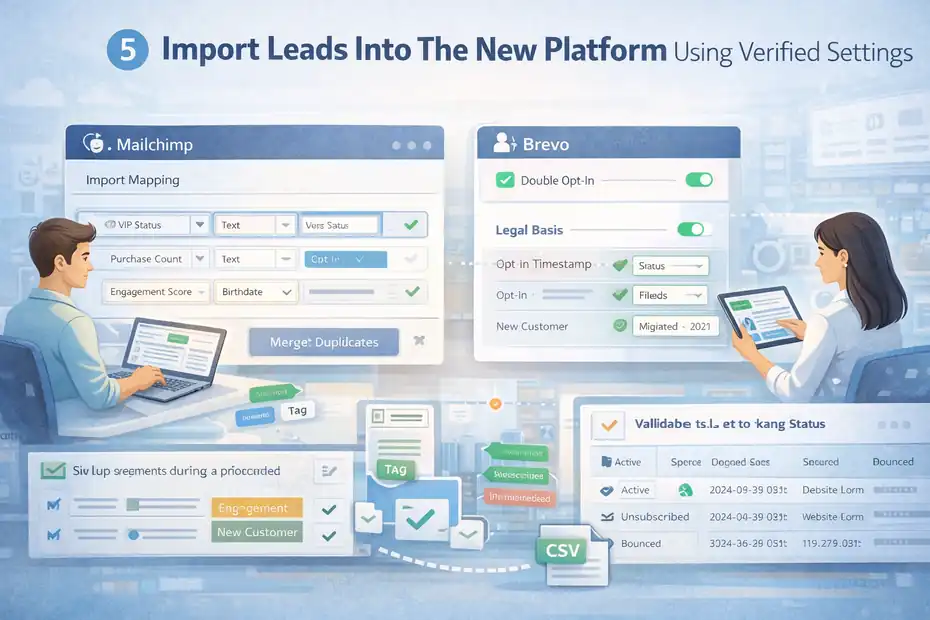
This is the moment your whole email leads migration checklist has been building toward. Importing sounds simple, but the smallest mismatch in mapping or permissions can quietly sabotage your list.
I always slow down here — it’s worth doing right the first time.
Configure Import Mapping Rules Inside Mailchimp Correctly
Mailchimp’s import screen looks friendly, but it can be a little too smart for its own good. It auto-guesses your column mappings, which sounds helpful — until it labels your “vip_status” field as an address field or merges your “purchase_count” column into Notes.
When I’m mapping fields, I always:
- Click every dropdown manually to confirm accuracy.
- Ensure custom fields are assigned as “text,” not weird categories like phone or date unless required.
- Double-check that tags aren’t accidentally converted into groups.
A small example: I helped a business owner who imported 12,000 contacts and didn’t notice Mailchimp had mapped their “engagement_score” as Birthday. It completely wrecked their segmentation and took almost two hours to undo.
Take your time with mapping — it prevents the messy clean-up later.
Set Up Double Opt-In And Permission Tracking In Brevo
Brevo is stricter about permission tracking than almost any platform I’ve used. It expects clear consent metadata, and if that data is missing, it may block bulk sending until you fix it.
Two settings I always confirm:
- Double opt-in behavior — whether imported contacts should automatically be marked as confirmed.
- Legal basis field mapping — Brevo stores this separately from tags or attributes.
If you don’t map your “opt_in_timestamp” and “opt_in_ip,” Brevo may label contacts as “not opt-in,” which limits deliverability and can delay your first campaign.
Here’s something I learned the hard way: Brevo will not retroactively change a contact’s permission status after import unless you manually update it. So getting this right up front saves hours.
Apply Tags And Segments During Upload Instead Of Afterward
I used to apply tags after import because it “felt cleaner.” But with large lists, this creates two big issues:
- You lose visibility into how many contacts actually imported successfully.
- Automations depending on tags can’t activate immediately.
Most platforms let you assign tags or segments during import, which means:
- The segmentation logic is applied consistently.
- You can easily filter imported contacts for quick audits.
For example, adding a tag like “migrated_2026” during upload helps you track how this group behaves compared to future subscribers. This simple tag has saved me multiple times when diagnosing post-migration engagement dips.
Use Platform-Specific Flags To Maintain Subscriber Status
Different email tools track subscriber status in different ways:
- Active
- Unsubscribed
- Bounced
- Non-marketable
If you ignore these distinctions, your new platform may treat unsubscribed users as active — a compliance nightmare.
A quick tip: Before import, create a column in your CSV called something like “status_flag,” then convert old platform statuses into the new platform’s terminology. It’s a simple translation layer that keeps everything safe.
One client accidentally imported 600 unsubscribed users as active. Their very first campaign triggered a spike in spam complaints and got their sending limited for a week. It’s a mistake you only make once.
Rebuild Automations And Funnels Without Breaking Logic
Once your leads are safely imported, you need to rebuild the experiences they expect — welcome sequences, nurture flows, post-purchase emails, the works.
This part often reveals things your old platform handled behind the scenes that you now must recreate manually.
Replicate Existing Journeys From Kit Into The New Tool
Kit’s automation panel tends to simplify things by hiding complexity from you — which is great day-to-day, but tricky during migration. Kit may have combined multiple triggers into one workflow or automatically suppressed certain sends without showing you the logic.
When rebuilding these journeys in your new tool, I recommend:
- Taking screenshots of every workflow node from Kit.
- Listing all triggers (tag added, date-based, product purchased, etc.).
- Rebuilding the journey step-by-step instead of trying to replicate it from memory.
I once worked with a client whose “simple” welcome sequence actually had 14 hidden conditions in Kit. Without screenshots, we would’ve missed half of them.
Sync Behavioral Triggers Accurately In Brevo
Brevo has strong behavior triggers — like “visited page,” “opened email,” or “clicked link” — but they must be wired correctly. If your old platform used triggers like “tag added,” you’ll need to convert that logic into Brevo’s attribute-based or event-based system.
A common mismatch I see:
- Old platform: “Send offer when tag VIP is added.”
- Brevo: Requires an event, attribute update, or segment rule to fire the same action.
If this translation isn’t done right, your automations will appear functional but never actually fire.
One way to test this: Manually update a test contact’s attribute or simulate the event and watch whether the automation activates. It’s the quickest way to catch incorrect wiring.
Recreate Conditional Splits And Filters In Mailchimp
Mailchimp’s conditional split options are powerful, but narrower than some platforms. When you recreate conditional logic, you may need to combine:
- Groups
- Tags
- Merge fields
- Predictive demographics (if enabled)
Mailchimp also doesn’t support nested conditions the way some platforms do, so you may need to break one workflow into two separate ones.
A fun surprise I once discovered: Mailchimp treats “did not open email” very differently depending on how the workflow was created. In one migration, a client’s split logic broke because Mailchimp didn’t recognize historical opens — only opens that happened after the automation was rebuilt.
Testing conditions with sample contacts is essential here.
Validate Goal Tracking And Event-Based Flows Post-Migration
The final step is confirming that your funnels work the way you think they do. A lot of people rebuild workflows and assume they’re fine — but small discrepancies can block goal completion or trigger loops.
What I validate every single time:
- event triggers
- purchase-based goals
- time delays
- conditional exits
- fallback paths
If one piece is off, the entire journey can fall apart quietly — especially with sales-focused automations.
I often run a full end-to-end simulation using a test email:
- Opt in.
- Click links.
- Trigger events.
- Make a dummy purchase if needed.
If everything fires correctly, you’re safe to go live.
Verify Email Deliverability After Migrating Leads
Deliverability often dips right after a migration — not because you did anything wrong, but because inbox providers are cautious about new sending patterns.
A few intentional steps can stabilize everything quickly.
Authenticate Sending Domain With SPF, DKIM, And DMARC
Authentication is the fastest way to build trust with inbox providers. SPF confirms who can send email for your domain, DKIM validates the integrity of your messages, and DMARC tells providers what to do if something fails.
I always recommend updating these records before sending your first email from the new platform.
A small misconfiguration here can cause:
- spam folder placement
- domain reputation damage
- failure to send bulk campaigns
If you’re not comfortable editing DNS records, this is one of the few steps worth outsourcing.
Warm Up Your New Sending IP To Avoid Spam Filtering
When you switch platforms, your sending reputation does not follow you. You’re essentially starting fresh — even with a clean migration.
That’s why IP warm-up matters. The idea is simple: Send small volumes to your most engaged subscribers first, then gradually increase over a couple of weeks.
Here’s the warm-up schedule I usually follow:
- Week 1: 300–500 most engaged subscribers
- Week 2: 1,000–3,000 subscribers
- Week 3: Full list (minus cold subscribers)
If you blast your entire list on day one, providers like Gmail may flag you instantly.
Test Deliverability Using Mail-Tester Before Campaigns Go Live
Tools like Mail-Tester offer a simple yet powerful way to preview issues. You send a test email to the address they give you, and Mail-Tester assigns a deliverability score based on:
- SPF, DKIM, and DMARC
- content quality
- domain reputation
- list cleanliness indicators
I like using Mail-Tester before each major campaign during the first month after migration, especially if the platform changes how your email HTML is formatted.
Monitor Engagement Metrics To Catch Early Drops
After migration, don’t assume your list will behave exactly the same. Engagement patterns change — sometimes dramatically — if:
- subscribers weren’t imported correctly
- automations are misfiring
- deliverability dipped unexpectedly
Metrics to watch closely:
- open rates
- click rates
- bounce rates
- spam complaint rates
If you see a sudden drop, it’s usually not your content — it’s something technical in the migration setup. Early detection keeps your sender reputation intact.
Test Every Workflow To Catch Data Loss Or Trigger Issues
Once everything is imported, this is where I slow down and really breathe. Testing your workflows is the part most people rush — but it’s also where 90% of post-migration issues reveal themselves.
A small mismatch here can quietly break your entire funnel.
Run Automated Welcome Sequences Using Test Subscriber Profiles
I always start testing with something simple: a welcome sequence. Why? Because almost every list has one, and it’s the easiest way to confirm:
- tags fire correctly
- triggers activate
- time delays function as expected
- emails deliver to inbox (not spam)
Create a few test subscribers with different attributes — for example, one tagged as “lead,” one tagged as “customer,” and one with no tags at all. This helps you see how your system behaves when different users enter the same automation.
A real example: A client migrated from Kit, and their new platform didn’t recognize the “source” attribute correctly. As a result, every test subscriber was dumped into the wrong welcome sequence. Catching it early saved them from confusing thousands of new subscribers.
Validate Lead Scoring Accuracy After Import
If your platform uses lead scoring, this is where things often get messy. Many scoring systems rely on behavioral tracking (opens, clicks, purchases), which doesn’t always transfer cleanly.
To test lead scoring:
- Choose a sample contact with high historical engagement.
- Choose a low-engagement contact.
- Compare their scores in your old and new platform.
If the numbers don’t line up, it usually means one of these was dropped:
- activity logs
- tag histories
- purchase events
- link-click markers
Lead scoring is too important to ignore — especially if your automations depend on thresholds like “score ≥ 50 triggers sales sequence.”
Check If Abandoned Cart Or Transactional Flows Still Fire
Abandoned cart emails are powerful revenue drivers, so I always test these early. The tricky part? Ecommerce events almost never migrate perfectly because they’re platform-specific.
To test abandoned cart flows:
- Add a product to a test cart.
- Stop before checkout.
- Wait for the automation trigger window.
If no email fires, it typically means:
- your store isn’t connected correctly
- your event tracking key changed
- the cart ID stopped syncing
Transactional emails like order confirmations or shipping updates also need testing. I’ve seen storefronts accidentally send double receipts because both the old and new automation were still active.
Confirm Time Zone And Scheduling Settings In All Campaigns
This one sounds small, but it’s huge. Time zone mismatches can make emails send:
- at midnight instead of 8 AM
- hours earlier than expected
- inconsistently across segments
I once saw a welcome sequence where step 2 always sent before step 1 — simply because the first delay was set to “24 hours” in UTC and the second delay was in the account’s local time zone. It completely ruined the sequencing.
A quick fix: Standardize your time zone settings across:
- account
- automations
- campaign scheduling
This way, your flows run at the times you intended — not whatever the system decides.
Compare Pre-Migration And Post-Migration Data For Accuracy
After testing workflows, I tell people to step back and treat migration like a balancing sheet.
Your new platform should match your old one as closely as possible — or you risk losing trust in your data before you’ve even started.
Match Total Subscriber Counts Between Old And New Platforms
This is your simplest sanity check. If one platform says you have 12,438 subscribers and the new one says 12,207, that 231-person gap is your warning sign.
Common reasons counts don’t match:
- duplicate merging
- suppressed or cleaned contacts
- unsubscribed contacts filtered automatically
- errors during CSV export
I like to create a three-column summary:
| Source | Count | Notes |
| Old platform | X | baseline |
| CSV export | Y | after cleanup |
| New platform | Z | post-import |
It shows where discrepancies come from immediately.
Reconcile Tags, Segments, And Custom Fields For Completeness
Tags are often the lifeblood of segmentation — and the number one thing that goes wrong during migration. Sometimes:
- nested tags collapse into a single category
- empty tags get removed
- multi-value tags flatten incorrectly
Take time to compare tag lists from both platforms side by side. If your “VIP” segment has 30 fewer people than before, it’s not a coincidence — it’s a signal that something didn’t import correctly.
Also check custom fields. I once saw a “favorite product” field truncated because the new platform had a 50-character limit. Nobody noticed until segmentation started failing weeks later.
Audit Historical Activity Logs For Missing Engagement Data
This part is tedious but worth it. Engagement history doesn’t always migrate — and sometimes it isn’t meant to. But you should still know what’s missing.
In your old platform, look at:
- last open dates
- last click dates
- automation entry times
- purchase timelines
Then check what the new platform imported.
A gap in activity history doesn’t always break things, but it does affect:
- lead scoring
- segment qualification
- engagement cleanup
- predictive analytics
If you know what’s missing, you can adapt your strategy.
Review Compliance Records To Ensure No Consent Gaps
This is non-negotiable. If you can’t prove consent, you can’t legally send emails. Period.
Check that your imported data contains:
- opt-in timestamps
- IP addresses
- signup sources
- GDPR checkboxes (if used)
I once supported a migration where 4,800 contacts lost their opt-in timestamps accidentally. The new platform automatically suppressed them, and the business lost 40% of its marketable list overnight.
Compliance is not the place to “skip and hope.”
Securely Store Backup Files And Create A Future-Proof System
Once everything is live and working, you want to future-proof the work you’ve just done.
Most people don’t think about backups until something goes wrong — and by then, it’s usually too late.
Save Encrypted Backups Using Google Drive Or Dropbox Vault
I always create an encrypted zip file containing:
- raw CSV exports
- cleaned CSV files
- automation screenshots
- mapping documents
Storing these in Google Drive or Dropbox Vault (their secure file layer) gives you a reliable fallback in case anything breaks, corrupts, or needs to be rolled back.
A simple layer of protection goes a long way.
Maintain A Versioned CSV Archive For Quick Recovery
Your migration folder should include versioned backups like:
- contacts_raw.csv
- contacts_cleaned_v1.csv
- contacts_cleaned_v2.csv
- final_import_ready.csv
This might look excessive, but when something goes wrong (and it will eventually), versioning helps you pinpoint exactly when a problem was introduced.
Think of it like checkpoints in a video game — you never want to start from the beginning if you don’t have to.
Document Platform Settings For Faster Future Migrations
I’ve learned that documentation is one of the most underrated parts of any migration. Most of the time, people forget settings like:
- default time zone
- email sending domain
- automation triggers
- segmentation logic
- custom field definitions
Create one document where all of this lives. The next time you switch platforms — or even just troubleshoot — you’ll be thankful you planned ahead.
Schedule Quarterly Data Audits To Prevent Hidden Issues
Your system might be perfect today, but data drifts over time.
Tags evolve, automations change, and subscribers can be imported from new sources accidentally.
A quarterly audit is a simple way to maintain a clean ecosystem:
- remove duplicates
- check engagement health
- review segmentation accuracy
- clean invalid emails
- verify automations still run as intended
A little routine maintenance prevents major headaches later.
FAQ
What should be included in an email leads migration checklist?
A complete email leads migration checklist should include data cleanup, exporting all lists and custom fields, preparing clean CSV files, mapping fields correctly during import, testing workflows, and confirming deliverability settings. These steps ensure your contacts move safely without losing tags, segments, or historical data.
How do I prevent data loss when migrating email leads?
You can prevent data loss by validating emails, exporting every field (including tags and automations), standardizing field names, pre-testing a small import, and confirming that segments, consent records, and automation triggers work exactly as expected in the new platform.
What should I verify after migrating email leads to a new platform?
After migration, verify subscriber counts, tag accuracy, automation functionality, domain authentication, and deliverability. Reviewing these items ensures your new system is clean, functional, and aligned with your original email leads migration checklist.

Juxhin B is a digital marketing researcher and founder of JAK Digital Hub, specializing in email marketing software, marketing automation platforms, and digital growth tools. His work focuses on software testing, platform comparisons, and real-world performance analysis to help businesses choose the right marketing technology.