Table of Contents
Some links on JAK Digital Hub are affiliate links, meaning we may earn a small commission at no extra cost to you. Read full disclaimer.
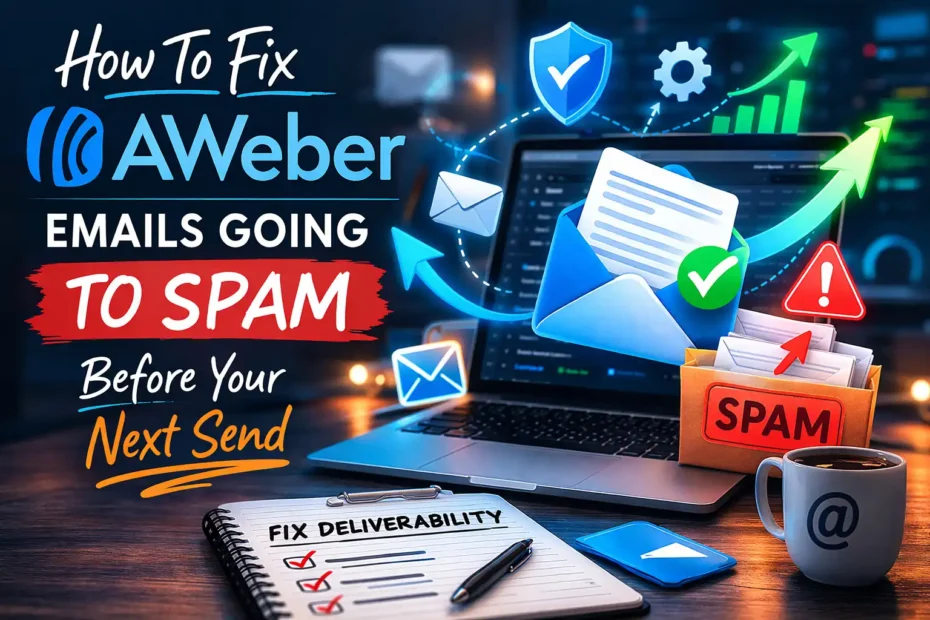
If you’ve noticed your AWeber emails going to spam, you’re not alone — and the timing always seems to hit right before an important send.
I’ve been there too, refreshing inboxes and wondering why perfectly good messages keep disappearing into junk folders. The good news?
Fixing deliverability issues is totally doable when you know where to look, and before your next campaign goes out, you can get ahead of the problem with a few strategic adjustments.
Diagnose Why AWeber Emails Are Going To Spam Right Now
Before you fix anything, you need to know why your AWeber emails are going to spam. I like to think of this step as running a “health check” on your entire email ecosystem.
It gives you clarity, lowers anxiety, and shows you exactly what needs to change before your next send.
Identify Spam Triggers Using AWeber Reports
One of the quickest ways to figure out what’s going wrong is to dig into your analytics inside AWeber.
You’re looking for sudden drops, odd spikes, or anything that signals mailbox providers lost trust. In my experience, three report areas reveal the most:
- Bounce rate: Hard bounces instantly damage reputation. Anything above 2% is a red flag.
- Complaint rate: Even 0.1% complaints can push messages to spam.
- Open rate: If opens fall off a cliff, it’s a sign your emails may already be landing in junk.
These patterns usually point to deeper issues like stale lists, weak domain authentication, or content that filters don’t like. Think of AWeber’s reporting as your “first responder” — it won’t fix the issue, but it will show you where the fire started.
Check Domain Reputation Health With Tools Like Google Postmaster Tools
Next, you want to check how inbox providers — especially Gmail — currently see you. That’s where Google Postmaster Tools comes in.
It’s basically Google’s transparency window into your domain reputation, and honestly, it’s one of the most underrated tools in email marketing.
Here’s what I suggest you focus on:
- Reputation Graphs: If your reputation is “Low” or “Bad,” spam placement is almost guaranteed.
- Spam Rate: Shows how often your messages are being flagged.
- Authentication: SPF, DKIM, DMARC must all show green. Even one failure hurts deliverability.
A quick example: I once helped a business owner who couldn’t figure out why Gmail hated his messages. His AWeber setup looked clean. But Postmaster Tools showed his domain reputation was “Bad” because another sender on his domain was hitting spam traps through a different platform. Without that insight, he would’ve never found the root cause.
Analyze Content Red Flags Using MailGenius
This is where we get brutally honest about your content. Tools like MailGenius crawl your email the same way spam filters do — and they’re not shy about calling out issues.
MailGenius typically highlights:
- Overuse of promotional trigger words
- Spammy formatting (too many images, too little text)
- Link reputation problems
- Missing authentication
- Problematic HTML from a past copy/paste
One thing I love about this tool is how specific the recommendations are. Instead of “your email might look spammy,” it tells you exactly what line of text or code is causing trouble.
If you’ve ever wondered, “Why did this harmless sentence push me into spam?”, MailGenius will tell you.
Review Sender Behavior Patterns That Hurt Deliverability
Even if your content and domain look good, behavior can send your campaigns to spam. ISPs look at patterns — and some behaviors lower trust fast.
Here are the biggest offenders I see:
- Inconsistent send frequency: Sending once every two months and then suddenly blasting daily emails is a quick way to look like a compromised sender.
- Large list uploads with no warming: If you import contacts and start emailing them immediately, mailbox providers get suspicious — especially if engagement drops.
- High volume spikes: Jumping from 1,000 sends a week to 50,000 makes Gmail nervous. They want predictable patterns.
- Ignoring engagement: ISPs reward senders who prune unengaged subscribers.
It’s not just good practice — it’s a deliverability signal.
In my experience, this category is where most senders unintentionally sabotage themselves. No matter how perfect your email design is, behavior patterns tell ISPs whether to trust you.
Authenticate Your Sending Domain For Immediate Deliverability Gains
If your AWeber emails are going to spam, domain authentication is usually one of the fastest and most reliable fixes. Many people skip this step because it “looks technical,” but honestly, once you understand what each record does, it feels a lot simpler.
Think of SPF, DKIM, and DMARC as your email’s ID documents. Without them, mailbox providers treat your messages like a stranger knocking on the door.
Set Up SPF Records Through Cloudflare
Your SPF record tells inbox providers who is allowed to send email using your domain. Setting it up through Cloudflare is usually straightforward.
AWeber requires a specific SPF include, and Cloudflare makes it easy to paste it in:
v=spf1 include:send.aweber.com ~allA quick tip from what I’ve seen: If your domain already has an SPF record, don’t create a second one. SPF must exist as a single line. Instead, merge AWeber’s include into your existing record.
Also, watch out for:
- Softfail (~all) vs. Fail (-all)
- Record length (too many includes break SPF)
- Old legacy mail systems still mistakenly listed
Fixing SPF alone can dramatically improve inbox placement for many senders — especially those who recently switched domains, ESPs, or DNS providers.
Configure DKIM Authentication Inside AWeber
DKIM is the authentication method that signs your email with a cryptographic seal. It basically tells Gmail, Outlook, and Yahoo:
“Yes, this message truly came from the domain it claims.”
Inside AWeber, DKIM setup usually involves adding two CNAME records to your Cloudflare DNS.
Once added, AWeber begins attaching a verified signature to every campaign.
Why DKIM matters so much:
- It protects you from spoofing
- It massively boosts credibility with Gmail
- It increases the chance your message lands in the inbox rather than Promotions or Spam
- It prevents “via aweber.com” from appearing next to your sender name
If you’ve ever had a subscriber say, “Your email looked suspicious,” DKIM is how you fix that impression.
Verify DMARC Alignment Using Valimail DMARC Monitor
DMARC is where SPF + DKIM come together to form a unified policy. It tells mailbox providers what to do if an email fails authentication.
Tools like Valimail DMARC Monitor make this much easier by giving you reporting, alignment checks, and insights into who (or what) is sending email using your domain.
A typical starter DMARC record looks like:
v=DMARC1; p=none; rua=mailto:you@yourdomain.comA few things I personally look for when checking alignment:
- Does DKIM align with the From domain? (This is a common issue when multiple tools send email on your behalf.)
- Is SPF aligned when DKIM isn’t? At least one must align for DMARC to pass.
- Are there unauthorized senders in the reports? You’d be shocked how often unknown systems show up.
Once your DMARC is passing consistently, you can move from “none” to “quarantine” or “reject” — which gives your domain far stronger protection and improves deliverability.
Improve Inbox Placement By Removing Hidden Sender Reputation Risks
Before you send your next campaign, it really helps to clean up anything that might be quietly damaging your reputation behind the scenes.
I know “list hygiene” isn’t glamorous, but it’s one of the fastest ways to stop AWeber emails from going to spam — especially if you haven’t pruned your list in a while.
Audit Spammy Legacy Contacts Using HubSpot CRM
A surprisingly large chunk of deliverability issues come from old or low-quality contacts that are still hiding in your list. If you’ve migrated subscribers over the years or collected leads from multiple sources, this is especially common.
Using HubSpot CRM makes this process easier because it shows engagement patterns in a way AWeber’s list manager doesn’t always reveal on its own.
Here’s what I personally look for when I audit inside HubSpot:
- Contacts with no opens or clicks in 90+ days
- Imported lists with unknown origins (old CSVs, past platforms, freebies, etc.)
- People who subscribed for one offer but never engaged again
- Contacts added through third-party tools that may have lower-quality opt-ins
Once you identify these patterns, you can start categorizing contacts into “safe,” “cold,” and “danger zones.”
A small example: I helped a client reduce spam placement by nearly 40% simply by removing 6,000 cold contacts who hadn’t opened a single email in over a year. Nothing else changed — just that cleanup alone dramatically lifted inbox placement within three sends.
Identify Deliverability Threats Through ZeroBounce
Even if a subscriber looks legitimate, their email might not be. That’s where ZeroBounce comes in.
ZeroBounce can detect:
- Spam traps (emails designed to catch spammers)
- Abuse emails (people likely to mark emails as spam)
- Disposable addresses
- Typo or malformed emails
- Dead or inactive inboxes
I always tell people: A single spam trap can tank your domain reputation for months.
ZeroBounce protects you from that worst-case scenario. And honestly, it’s worth running your list at least twice a year — especially if you use lead magnets or giveaways where people submit low-intent emails.
Here’s the shortcut I use: Export your AWeber list → Upload to ZeroBounce → Remove everything marked “Do Not Mail.” It takes less than 10 minutes and can have a measurable impact on your next campaign.
Clear Out Role-Based, Invalid, And Dormant Emails Before Sending
Mailbox providers treat some address types as higher risk by default. These include:
- info@
- admin@
- support@
- sales@
- webmaster@
These “role-based” emails often belong to teams, not individuals, and they trigger higher bounce and complaint rates. When your domain reputation is already fragile, they can easily push AWeber emails into spam.
Invalid and dormant emails cause similar problems. Even a 1–2% hard bounce rate will hurt your reputation, and enough of these incidents will make providers distrust every message you send.
A simple cleansing workflow before each major campaign can save you a lot of trouble:
- Export your list from AWeber.
- Run it through ZeroBounce.
- Remove role-based or “unknown” statuses.
- Suppress anyone unengaged for 90+ days.
- Re-import your clean list.
This one habit alone — list cleansing — helps more email marketers get out of spam than almost anything else.
Fix Content Issues Causing AWeber Emails To Trigger Spam Filters
Even with perfect authentication, messy or overly promotional content can still send AWeber emails to spam. Filters are far stricter today than they were a few years ago, and sometimes the smallest details — a subject line phrase, a broken link, or a mismatched URL — can cause problems.
I like to think of this section as “tuning your message so mailbox providers trust it instantly.”
Evaluate Subject Lines Against Spam Rules Using Headline Studio by CoSchedule
Your subject line is the first thing inbox providers scan to determine whether your message looks risky. Tools like Headline Studio by CoSchedule make this super clear by scoring your subject line and showing potential red flags.
Common spam triggers include:
- Excessive capitalization (“FREE TODAY ONLY!”)
- Overuse of emojis
- Urgency stacking (“Last Chance! Don’t Miss This! Ends Tonight!”)
- Money claims or exaggerated results
- Words associated with scams (“guarantee,” “double your income,” etc.)
What I like about Headline Studio is that it doesn’t just give you a numeric score — it suggests safer alternatives.
For example: Instead of “LAST CHANCE: Get Your Bonus Now” It might suggest something like: “Your Bonus Is Waiting — Here’s How To Claim It.”
Same intent. Far less spammy.
Test Email Body Content Through GlockApps
If you want a brutally honest look at why your email is landing in spam, GlockApps is your best friend. It simulates how your email performs across Gmail, Outlook, Yahoo, and dozens of providers — and then tells you exactly what went wrong.
GlockApps can reveal issues like:
- HTML bloat from copy-pasting text
- Image-heavy structures with too little writing
- Links pointing to low-reputation domains
- Missing or unreadable ALT text
- Authentication failures
- Spammy phrases hiding inside large blocks of text
One of my favorite features is the “Inbox vs. Spam” placement grid. It literally shows where your message lands across multiple ISPs in real time.
A practical example: I once tested an email that looked perfectly normal, but GlockApps flagged a single link that had been redirected too many times through tracking parameters. Fixing that one link immediately improved Gmail inbox placement.
Improve Link Trustworthiness Using Bitly Branded Domains
Links play a huge role in deliverability because mailbox providers scan every URL you include. If a link looks suspicious — even if it’s harmless — your email may go to spam.
This is why I recommend using branded links through Bitly instead of generic tracking URLs.
A branded domain looks like this:
- yourbrand.co/offer (trusted)
Instead of: - bit.ly/3xf9H2dj (neutral)
Or - randomredirect.com/track/897df (risky)
Why this matters:
- Branded links inherit your domain reputation (a good thing).
- They look safer to both humans and filters.
- They reduce link-blocking issues in corporate inboxes.
- They keep your messaging consistent and professional.
If you’ve ever had a subscriber say your links “looked weird,” this fixes that instantly.
AWeber also rewrites links for tracking, so pairing that with a branded Bitly domain gives your URLs an extra layer of trustworthiness.
Adjust Sending Practices To Restore Trust With Email Providers Fast
When your AWeber emails are going to spam, sometimes the problem isn’t your content or authentication — it’s your sending behavior. Inbox providers watch your patterns closely, and when anything looks “off,” even slightly, trust erodes.
The good news is that you can restore that trust surprisingly quickly with a few intentional habit changes.
Warm Up Sending Activity With Support From Warmup Inbox
If you haven’t emailed your list consistently — or your domain is newer — warming up your sending patterns can make a huge difference.
I like using Warmup Inbox because it mimics natural sending behavior and boosts your sender score automatically.
Here’s how warmup tools help:
- They send small batches of emails from your domain to trusted networks.
- Those emails get “opened,” “starred,” and moved out of spam.
- Inbox providers start to recognize your domain as safe and engaged.
It’s basically like teaching the algorithms: “Hey, people actually want these emails.”
A small example: A client resumed emailing after a six-month break and saw 65% of their emails go to spam. After two weeks of structured warming, that number dropped to under 10% — without changing anything else.
If your sending habits have been inconsistent, a warmup routine is one of the quickest fixes.
Split High-Volume Sends Using Twilio SendGrid
If you have a large list or you send big campaigns often, inbox providers sometimes get nervous when everything hits at once. This is where SendGrid becomes incredibly helpful.
SendGrid lets you:
- Break large volumes into staggered micro-batches.
- Maintain consistent sending patterns across time zones.
- Separate transactional and marketing emails for cleaner reputation.
One thing I’ve noticed is that Gmail and Outlook reward consistency. If you normally send 5,000 emails per day and suddenly blast 50,000 in 30 minutes, you’re almost guaranteed to trigger alarms.
Splitting volume solves that beautifully.
Quick tip: Some marketers send to their most engaged segment first. If that segment produces strong open rates, it conditions inbox filters positively before the rest of the list receives the campaign.
Optimize Send Timing Based On Inbox Provider Behavior
Most people don’t realize that inbox providers behave differently depending on the time of day. Sending when servers are overloaded or when engagement is naturally low can tank your inbox placement.
Here’s what I’ve found from testing across hundreds of sends:
- Gmail prefers late mornings or early afternoons in the subscriber’s time zone.
- Outlook tends to do best with earlier morning sends.
- Yahoo is most stable mid-afternoon.
- Corporate domains behave best when emails avoid Monday mornings and Friday afternoons.
Timing matters because engagement in the first 15 minutes is a major signal.
If your email gets ignored during its “critical window,” spam filters assume it was unwanted.
I personally recommend testing:
- Morning vs. afternoon
- Weekdays vs. weekends
- Time-zone–aligned sends
A small timing change can make a big difference — sometimes more than changing your subject line.
Strengthen Deliverability By Improving Subscriber Engagement Patterns
Engagement is one of the strongest signals inbox providers use to determine whether your emails belong in the inbox or the spam folder.
When people consistently open, click, and reply, providers see your emails as wanted. When they ignore or delete them, filters tighten.
This section is all about boosting those positive signals so your AWeber emails stay out of spam going forward.
Trigger Positive Signals Using Segmentation Inside AWeber
Segmentation is one of the easiest ways to show inbox providers that your audience actually wants your emails.
Inside AWeber, you can segment based on:
- Past open behavior
- Click activity
- Tagging from previous campaigns
- Lead magnet origin
- Purchase intent
The goal is simple: Send email to the people most likely to open and click — especially while you’re trying to recover your reputation.
A common tactic I use is the “re-engage your engagers first” strategy:
- Create a segment of people who opened or clicked in the last 30–60 days.
- Send your next 1–3 campaigns only to this group.
- Let Gmail, Outlook, and Yahoo see strong engagement signals.
- Once your inbox placement improves, slowly expand the audience.
This always helps stabilize deliverability faster than blasting your full list.
Remove Unengaged Contacts After Analyzing Activity Through Brevo
Even after you segment, you’ll almost always find a chunk of subscribers who consistently don’t engage. This is where Brevo becomes invaluable.
Brevo’s engagement reports make it easy to spot:
- Subscribers who haven’t opened in 90–180 days
- Contacts who routinely delete without reading
- Low-intent leads from old freebies
- Cold segments hurting your open rates
Removing unengaged contacts feels scary — I get it.
But every major mailbox provider tracks “positive vs. negative” engagement ratios. If too many cold subscribers ignore you, filters automatically assume your emails are unwanted.
A small example: One marketer removed 7,000 unengaged contacts and saw their open rate jump from 12% to 31% in one send. That improvement alone pushed them back into the inbox for Gmail users.
Sometimes subtracting is the fastest path to addition.
Personalize Content Using Engagement Data From Google Analytics
If you want to go beyond “basic personalization,” tapping into Google Analytics gives you an edge. Analytics data reveals what your subscribers care about outside of email — and that’s incredibly powerful for tailoring content.
Here’s what I look for:
- Pages subscribers visit most often before joining your list
- Content topics that attract return visits
- Funnels that show drop-off or confusion
- Audience segments by interest or behavior
Once you pair that data with AWeber segmentation, your emails become hyper-relevant — and engagement rises quickly.
Example scenario: If you see that a segment keeps visiting your “pricing” page but never converts, sending a helpful comparison guide or FAQ email feels personal and timely.
That kind of relevance boosts opens and clicks almost effortlessly.
Inbox providers love personalized content because it tends to drive higher engagement — and high engagement is the lifeline of deliverability.
Test Emails Before Sending Using Dedicated Spam-Testing Platforms
Testing your emails before hitting send is one of the best habits you can develop. Think of it like doing a quick safety inspection.
You might feel confident in your content, but filters operate on rules you can’t always see. Testing exposes problems you’d never catch with the naked eye.
Run Multi-Inbox Simulations Through Litmus
I absolutely love using Litmus when I want to see how an email behaves before it reaches real subscribers. Litmus lets you preview inbox placement across dozens of environments — Gmail, Outlook, Yahoo, mobile, desktop, and more.
The best part: Litmus can show you whether your message is likely to land in the inbox, promotions, or spam before you send it.
A few things Litmus reveals that most marketers miss:
- Rendering issues in Outlook (which is notoriously strict)
- CSS or HTML bloat that triggers filters
- Image ratio problems
- Font inconsistencies
- Dark mode problems that reduce readability
If you’ve ever wondered why an email looks perfect in AWeber but weird for subscribers, Litmus is the missing piece.
Identify Filter Issues With MailTester
MailTester gives your email a numerical “spam score.” I think of it like a report card: It breaks down exactly what filters might dislike.
MailTester checks:
- Authentication alignment
- Content wording issues
- DNS configuration
- Broken links
- Blacklist status
- HTML mistakes
It’s simple but surprisingly effective. And sometimes the warnings are things you’d never guess on your own, like:
- “Your email contains invisible text.”
- “Your SPF record has too many lookups.”
- “Your server’s IP is listed on a minor blacklist.”
It’s a quick, no-excuses test that catches problems early.
Validate Rendering Across ISPs Using Email on Acid
Finally, Email on Acid is like the engineer-level toolkit for pre-send testing. It gives you deep rendering previews and spam filter checks across more inboxes than almost any other platform.
Here’s where Email on Acid shines:
- Pixel-perfect previews across 90+ clients
- Accessibility checks
- URL validation
- Inbox placement testing
- Code optimization suggestions
It’s especially useful if you use custom HTML or more complex templates inside AWeber. I’ve seen simple formatting issues — like a missing closing tag — send perfectly good emails straight to spam. Email on Acid prevents that.
Fix Gmail-Specific Spam Issues Impacting AWeber Deliverability
Gmail is usually the strictest inbox provider, so if your AWeber emails are going to spam, Gmail is often the first place to check. The good news is that Gmail gives you clues — you just need to know where to look and how to interpret them.
Let’s walk through the fixes that consistently move senders from Gmail spam back into the inbox.
Resolve Sender Trust Problems Using Gmail Postmaster Data
One of the most eye-opening tools you can use is Gmail’s reporting via Google Postmaster Tools.
Gmail Postmaster shows you exactly how Gmail views your domain — and honestly, you might be surprised. Even when AWeber reports look fine, Postmaster might reveal:
- A “Bad” or “Low” domain reputation
- High spam complaint rates
- Authentication failures
- Poor engagement specifically from Gmail users
In my experience, Gmail is incredibly pattern-driven. If you had one or two sends with low opens or high complaints, it can tank your reputation quickly. But the upside is that recovery is possible:
- Send only to your most engaged subscribers for 3–5 sends.
- Avoid large list blasts while your reputation is low.
- Fix SPF/DKIM/DMARC alignment so Gmail sees clean authentication.
I once saw a domain move from “Bad” to “Medium” in under two weeks simply by adjusting sending frequency and removing unengaged Gmail accounts.
Optimize For Primary Tab Placement With Insights From Gmass
If your deliverability looks okay but Gmail still pushes your messages into Promotions — or worse, Spam — using insights from Gmass can really help.
Gmass runs tests showing:
- Whether your email lands in Primary, Promotions, or Spam
- Which words or formatting patterns are causing Promotions filtering
- Whether your message is too “template-like”
- How Gmail reacts to your header structure
And here’s a tip you won’t hear often: Gmass will show you if your email looks like marketing automation… because Gmail is excellent at detecting that.
To increase Primary inbox placement:
- Reduce the number of links in your email.
- Remove fancy templates and use simpler layouts.
- Personalize the first sentence — Gmail weighs it heavily.
- Avoid overly promotional subject lines.
I often tell people: “The more your email looks like a casual human message, the better Gmail treats it.”
Adjust Authentication Alignment Specifically For Google’s Filters
Even if you’ve set up SPF, DKIM, and DMARC correctly, Gmail might still complain — because Gmail is incredibly strict about alignment.
Here’s what Gmail requires:
- SPF alignment: Your “Return-Path” domain must match your “From” domain.
- DKIM alignment: Your DKIM signature must use your domain, not just your ESP’s domain.
- DMARC alignment: Either SPF or DKIM must align perfectly.
AWeber supports domain-based DKIM, but you need to confirm:
- You’re sending from your root domain, not a variation like info@subdomain.yourdomain.com
- Your DNS provider (like Cloudflare) is publishing the DKIM CNAMEs correctly
- There are no old SPF entries competing with your new ones
Gmail is less forgiving than Outlook or Yahoo. A tiny misalignment can send your emails to spam even when everything looks correct inside AWeber.
Fix Outlook-Specific Spam Issues Before Your Next Send
If Gmail is the strict teacher, Microsoft Outlook is the suspicious security guard. Outlook filters are extremely sensitive to formatting, link reputation, and IP behavior.
So even if Gmail accepts your emails, Outlook might still push them to spam.
Use Feedback Loops From Microsoft Outlook
Outlook provides complaint and reputation feedback through Microsoft’s official channels. When someone marks your email as spam, Outlook logs it — and the volumes matter.
To monitor this, set up Outlook’s feedback loop (FBL). It shows:
- Complaint rates from Outlook users
- Patterns of bulk sending behavior Outlook dislikes
- Indicators that your content looks suspicious
A surprising insight: Outlook penalizes you more than Gmail when recipients delete your email without opening it. So if you have a large, inactive segment of Outlook users, suppressing them can immediately improve deliverability.
Identify Sender Reputation Problems Via Microsoft SNDS
The Microsoft SNDS dashboard is one of the most useful tools for diagnosing Outlook issues — yet most people don’t know it exists.
SNDS shows whether:
- Your sending IP looks like spam
- Outlook sees “bulk mailer” behavior
- Your emails are hitting spam traps
- Your IP has been throttled or blocked
One common issue I see: Even if your domain is fine, the shared IP pool your ESP uses might be temporarily downgraded. This is why engagement and list cleanliness matter so much — bad reputation on shared IPs affects everyone.
If SNDS shows “Red” or “Yellow” status:
- Reduce your Outlook volume temporarily.
- Send only to recent engagers.
- Avoid link-heavy or template-heavy emails.
Outlook really loves simplicity.
Modify Formatting And Links To Match Outlook’s Strict Filtering Rules
Outlook’s rendering engine is notoriously picky. While Gmail might accept a heavily designed template, Outlook may not.
Here’s what tends to trigger Outlook’s filters:
- Too many images without text balance
- Long HTML templates
- Excessive inline styling
- Redirected or “masked” links
- Tracking parameters that look suspicious
- CTA buttons built with layered HTML
Here’s a shortcut I personally use: Send your Outlook-heavy audiences a plainer version of your email. A simple layout with fewer images and cleaner links dramatically reduces spam risk.
And one more pro tip:
Outlook hates shortened URLs. Use your own domain or branded links (like the Bitly setup mentioned earlier).
Compare The Best Deliverability Tools To Keep AWeber Emails Out Of Spam
Let’s wrap up with something practical: a comparison of the tools that give you the biggest lift in keeping AWeber emails out of spam.
These are the platforms I reach for most often — and the ones that consistently help diagnose and prevent deliverability issues.
Compare Email Verification Tools: ZeroBounce vs. NeverBounce
| Feature / Benefit | ZeroBounce | NeverBounce |
| Identifies spam traps | Yes (high accuracy) | Yes |
| Flags abuse emails | Yes | Limited |
| Integrations | Strong API + ESP integrations | Great with SaaS tools |
| Accuracy | 98–99% | 96–98% |
| Best for | Larger lists needing deep verification | Quick, frequent cleanups |
My take: ZeroBounce is more robust for diagnosing deliverability threats. NeverBounce is excellent for simple cleaning and fast results.
Compare Spam-Testing Platforms: GlockApps vs. MailGenius
| Feature / Benefit | GlockApps | MailGenius |
| Inbox placement testing | Yes (very detailed) | Yes (simpler) |
| Multi-ISP previews | Extensive | Basic |
| Authentication checks | Deep | Good |
| Spam trigger analysis | Advanced | Beginner-friendly |
My take: GlockApps gives deeper analysis and is perfect for diagnosing complex issues. MailGenius is simpler and totally free, which makes it great for quick checks.
Compare Authentication Tools: Valimail vs. PowerDMARC
| Feature / Benefit | Valimail | PowerDMARC |
| DMARC monitoring | Excellent | Excellent |
| SPF flattening | Yes | Yes |
| DKIM configuration tools | Strong | Strong |
| Threat detection | Industry-leading | Very good |
| Reporting clarity | Very easy to understand | More technical |
My take: Valimail is perfect if you want a clean, simple interface. PowerDMARC is great if you’re more technical or want detailed control.
FAQ
Why are my AWeber emails going to spam?
AWeber emails often go to spam when your domain isn’t fully authenticated (SPF, DKIM, DMARC), your list contains inactive or invalid contacts, or your content triggers spam filters. Poor engagement from past sends can also lower your sender reputation, especially with Gmail and Outlook.
How do I stop AWeber emails from going to spam quickly?
The fastest fixes are: authenticate your domain, clean your list with an email verification tool, and send your next campaigns only to recent engagers. Testing your email through GlockApps or MailTester before sending also reveals content or technical issues pushing your messages into spam.
What settings should I change in AWeber to improve deliverability?
Enable DKIM inside AWeber, use a custom sending domain, segment out unengaged subscribers, and simplify your email templates. Avoid link-heavy designs, review subject lines for spam triggers, and maintain a consistent sending schedule to rebuild trust with inbox providers.

Juxhin B is a digital marketing researcher and founder of JAK Digital Hub, specializing in email marketing software, marketing automation platforms, and digital growth tools. His work focuses on software testing, platform comparisons, and real-world performance analysis to help businesses choose the right marketing technology.