Table of Contents
Some links on JAK Digital Hub are affiliate links, meaning we may earn a small commission at no extra cost to you. Read full disclaimer.
If your GetResponse emails going to spam instead of the inbox, you’re not alone. I’ve seen this happen to bloggers, affiliate marketers, and ecommerce owners who set everything up correctly—yet their campaigns still disappear into spam folders.
The frustrating part is that it often comes down to a few technical settings, sender reputation signals, or content triggers that most people overlook.
The good news? Once you understand the exact causes behind getresponse emails going to spam, fixing the problem is usually much faster than you expect.
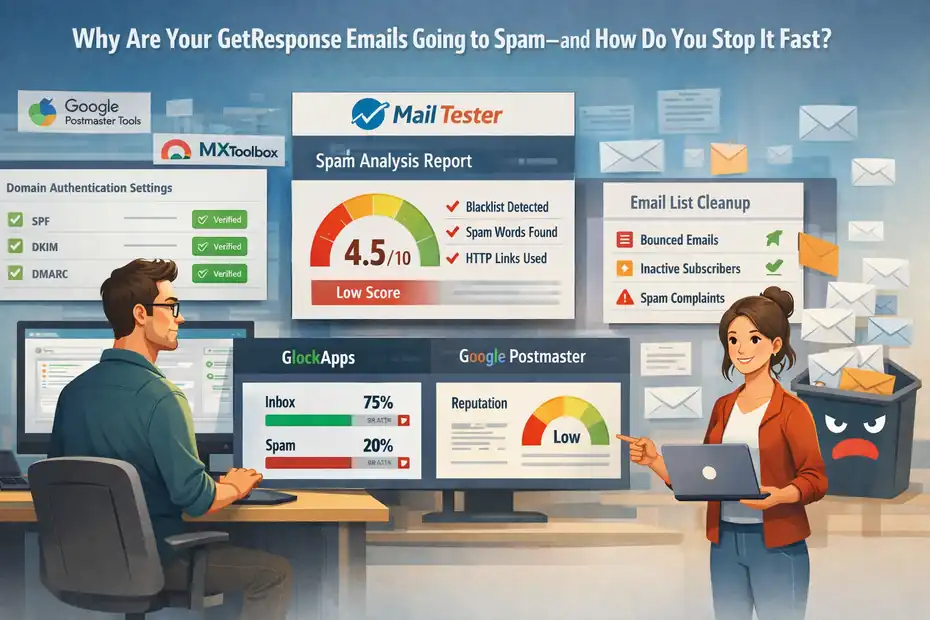
Check Your Domain Authentication Setup First (SPF, DKIM, DMARC)
If your getresponse emails going to spam, domain authentication is the first thing I recommend checking. Email providers like Gmail, Outlook, and Yahoo rely heavily on authentication records to confirm that your emails are legitimate and not forged by spammers.
Think of these records as your email “identity documents.” Without them, inbox providers don’t fully trust your messages—even if your content is perfectly fine.
Verify SPF Records In Your DNS Settings
SPF (Sender Policy Framework) tells inbox providers which servers are allowed to send emails on behalf of your domain. If your SPF record is missing or incorrect, email providers often treat your campaigns as suspicious.
In simple terms: SPF answers the question, “Is GetResponse actually allowed to send emails from this domain?”
Here’s how you can check it:
- Log into your domain registrar or hosting provider (for example: Namecheap, GoDaddy, or Cloudflare).
- Open the DNS management panel.
- Look for a TXT record that starts with
v=spf1.
A typical SPF record for GetResponse looks similar to this:
v=spf1 include:_spf.getresponse.com ~all
If you don’t see something like this, your emails may fail authentication checks.
From what I’ve seen, this alone fixes deliverability issues for a surprising number of users. I once worked with a blogger whose entire newsletter was landing in spam simply because their SPF record was missing after migrating domains.
Once we added the correct SPF entry, inbox placement improved within a few campaigns.
Enable DKIM Signing Inside GetResponse Email Settings
DKIM (DomainKeys Identified Mail) adds a digital signature to every email you send. That signature confirms the message hasn’t been altered during delivery.
If SPF proves who sent the email, DKIM proves the email hasn’t been tampered with.
Inside GetResponse, you can enable DKIM fairly quickly:
- Go to Menu → Tools → Email Authentication
- Select your sending domain
- Generate the DKIM records
- Add the provided TXT or CNAME records to your DNS settings
Once activated, every email sent through GetResponse carries that cryptographic signature.
Why this matters for spam filtering:
- Gmail heavily favors DKIM-authenticated senders
- Authenticated domains build trust faster
- It protects your domain reputation from spoofing attacks
In my experience, SPF alone isn’t enough anymore. Most inbox providers expect SPF + DKIM together before they fully trust a sender.
Add DMARC Policy To Strengthen Email Authentication
DMARC is the third piece of the authentication puzzle. It tells email providers what to do when SPF or DKIM fails.
Without DMARC, inbox providers are left guessing how strict they should be with suspicious emails.
A simple starter DMARC record looks like this:
v=DMARC1; p=none; rua=mailto:you@yourdomain.com
Here’s what each part means:
- v=DMARC1 → defines the protocol
- p=none → monitoring mode (no enforcement yet)
- rua → where reports are sent
Once you start receiving reports, you can gradually move to stricter policies:
| DMARC Policy | What It Does | When To Use |
|---|---|---|
| p=none | Monitoring only | When first setting up DMARC |
| p=quarantine | Suspicious emails go to spam | After monitoring reports |
| p=reject | Email is blocked entirely | When authentication is stable |
Most experienced email marketers eventually move toward quarantine or reject policies once their setup is stable.
Test Authentication With Tools Like MXToolbox Or Mail Tester
After configuring authentication, I strongly suggest verifying everything before sending another campaign.
Two tools I personally recommend using are:
| Tool | What It Checks | Why It Helps |
|---|---|---|
| MXToolbox | SPF, DKIM, blacklist status | Quick technical diagnostics |
| Mail Tester | Spam score and authentication | Real inbox simulation |
Here’s a simple process I use:
- Send a test email from GetResponse.
- Paste the email address provided by Mail Tester.
- Review the spam score report.
Mail Tester evaluates several deliverability signals:
- SPF alignment
- DKIM validity
- DMARC policy
- spam trigger phrases
- blacklist status
A score above 8/10 usually means your authentication setup is solid.
If you skip this step, you’re essentially sending campaigns blind—and that’s often why people end up asking why their getresponse emails going to spam.
Warm Up Your Sending Domain Before Scaling Campaigns
Even with perfect authentication, inbox providers don’t immediately trust a new sending domain. Trust is earned through consistent behavior over time.
This process is called domain warm-up, and skipping it is one of the fastest ways to trigger spam filtering.
Imagine opening a brand-new email account and suddenly blasting 50,000 emails in a single day. From Gmail’s perspective, that behavior looks exactly like spam.
Start With Small Email Batches Instead Of Full List Sends
If you’re launching a new domain or switching email platforms, avoid sending to your full list immediately.
Instead, begin with small segments.
A typical warm-up schedule might look like this:
| Day | Number Of Emails |
|---|---|
| Day 1 | 50–100 emails |
| Day 3 | 200–300 emails |
| Day 5 | 500 emails |
| Day 7 | 1,000+ emails |
This gradual increase signals to inbox providers that your sending behavior is normal.
I’ve seen many marketers unknowingly sabotage their deliverability by sending their entire 20,000-subscriber list on day one.
The result?
Spam folder placement for weeks.
Send High-Engagement Emails First To Trusted Subscribers
If you want to accelerate inbox trust, start with your most engaged subscribers.
These are people who:
- Open your emails frequently
- Click links
- Reply occasionally
- Recently joined your list
Why this matters: Inbox providers track engagement metrics like opens and clicks.
When your early campaigns generate strong engagement, algorithms start recognizing your domain as a legitimate sender.
In my experience, this strategy alone can dramatically improve inbox placement during warm-up.
Increase Sending Volume Gradually Over Two Weeks
Most domain warm-up periods last 10–14 days.
During that period, the goal is consistent behavior.
For example:
- Send at the same time each day
- Avoid sudden spikes in volume
- Maintain consistent campaign frequency
Email providers like Gmail analyze sending patterns carefully. Sudden spikes can trigger automated spam filtering.
Here’s a practical example:
Imagine a small ecommerce store launching a newsletter.
Week 1:
- Send product updates to 500 subscribers.
Week 2:
- Expand to 2,000 subscribers.
Week 3:
- Send full campaigns to the entire list.
This steady growth builds trust far more effectively than blasting emails immediately.
Monitor Inbox Placement Using GlockApps Or Mail Tester
During the warm-up phase, monitoring deliverability becomes extremely important.
Two tools I often recommend are:
| Tool | Best For | Key Feature |
|---|---|---|
| GlockApps | Inbox placement testing | Shows Gmail vs spam results |
| Mail Tester | Spam score diagnostics | Analyzes content and authentication |
For example, GlockApps lets you test campaigns across multiple providers:
- Gmail
- Outlook
- Yahoo
- Apple Mail
It shows exactly where your email lands:
- Inbox
- Promotions tab
- Spam folder
This kind of visibility helps you adjust quickly before sending to your full audience.
Without monitoring tools, diagnosing getresponse emails going to spam becomes guesswork.
Clean Your Email List To Remove Risky Subscribers
Even with perfect authentication and proper domain warm-up, poor list quality can destroy your deliverability. Inbox providers watch how your audience interacts with your emails. If a large percentage of your list ignores, deletes, or marks emails as spam, your sender reputation drops quickly.
In my experience, this is one of the most overlooked reasons behind getresponse emails going to spam. Many marketers focus on growing their list but forget that maintaining a healthy list matters just as much.
Remove Hard Bounces And Invalid Email Addresses
Hard bounces happen when emails are sent to addresses that no longer exist. Think of addresses like:
- typos during signup
- deleted accounts
- fake emails entered in forms
When too many hard bounces occur, inbox providers assume you’re sending to outdated or purchased lists.
GetResponse automatically tracks bounce rates inside campaign reports, but it’s still worth reviewing them regularly.
A healthy benchmark most email platforms recommend:
- Bounce rate under 2%
If your bounce rate climbs above that threshold, it sends a negative signal to providers like Gmail and Outlook.
Let me break it down simply: Imagine inviting 100 people to an event, but 20 invitations come back as “address not found.” That looks careless from the host’s perspective. Email providers see it the same way.
The easiest fix is removing invalid addresses immediately instead of trying to resend campaigns to them.
Identify Inactive Subscribers With Low Engagement Signals
Inactive subscribers quietly damage deliverability over time.
These are people who:
- Haven’t opened emails in months
- Never click links
- Ignore most campaigns
Inbox providers interpret inactivity as lack of interest. If a large portion of your list shows no engagement, your campaigns are more likely to land in spam.
A simple way to identify inactive contacts inside GetResponse is by filtering subscribers who:
- Haven’t opened emails in 90–180 days
- Haven’t clicked any links
- Haven’t interacted with recent campaigns
Many experienced email marketers run quarterly list audits to identify these contacts.
From what I’ve seen, removing inactive subscribers can improve open rates dramatically. I’ve seen lists jump from 14% open rates to over 30% simply by trimming disengaged contacts.
Suppress Spam Trap Risks Using ZeroBounce Or NeverBounce
Spam traps are email addresses used by anti-spam organizations to identify senders who collect poor-quality lists.
These addresses don’t belong to real people. Instead, they exist solely to catch senders using scraped or outdated databases.
Hitting spam traps can damage your sender reputation quickly.
Two popular email verification tools help reduce this risk:
| Tool | Main Function | Best Use Case |
|---|---|---|
| ZeroBounce | Email validation and spam trap detection | Large email list cleaning |
| NeverBounce | Real-time email verification | Signup form protection |
Both tools scan email lists and flag addresses that may be:
- invalid
- disposable
- role-based (info@, admin@)
- potential spam traps
For example, if you imported a list from an old CRM or previous email platform, running it through a verification service first can prevent deliverability problems before they happen.
Segment Highly Engaged Readers To Improve Sender Reputation
One of the smartest deliverability strategies I’ve used is creating an engaged subscriber segment.
Instead of sending every campaign to your entire list, you start by sending to subscribers who:
- opened an email in the last 30–60 days
- clicked at least one link
- joined your list recently
Why this works: High engagement sends positive signals to inbox providers.
It tells Gmail and Outlook that people actually want your emails.
Here’s a simple segmentation example:
| Segment | Criteria | Purpose |
|---|---|---|
| Highly Engaged | Opened or clicked within 30 days | Primary campaign audience |
| Moderately Engaged | Opened within 90 days | Secondary campaigns |
| Inactive | No opens in 120–180 days | Re-engagement campaigns |
Starting campaigns with highly engaged readers often improves inbox placement for the rest of your list later.
I believe this strategy is one of the most underused deliverability tactics. Many marketers assume they should email their entire list every time, but selective targeting actually builds stronger sender reputation over time.
And when that reputation improves, the chances of your getresponse emails going to spam drop significantly.
Avoid Spam Trigger Words That Damage Deliverability
If your getresponse emails going to spam, the problem might not be technical at all. Sometimes it’s simply the language inside the email. Spam filters scan subject lines, body text, and formatting patterns looking for signals that resemble bulk promotional spam.
That doesn’t mean you can’t sell in your emails. You absolutely can. But the way you phrase things matters more than most people realize.
Let me walk you through a few simple adjustments that often improve inbox placement surprisingly fast.
Rewrite Sales Language That Sounds Too Promotional
Spam filters have become much smarter over the years. They don’t just scan for a few obvious words anymore—they evaluate tone, phrasing, and overall messaging patterns.
Still, certain phrases continue to trigger spam filters more often than others.
Common high-risk phrases include:
- “100% FREE”
- “Act now!”
- “Limited time offer!!!”
- “Guaranteed income”
- “Risk-free profits”
If an email contains several of these phrases, spam filters may classify it as aggressive promotional content.
Instead of sounding like an advertisement, I suggest writing emails more like a conversation.
For example:
| Spam-Like Subject Line | Better Alternative |
|---|---|
| Make Money Fast Today | A Simple Strategy That Helped Me Increase Sales |
| Limited Time Offer!!! | Quick Update About Something I’m Testing |
| Free Bonus Waiting | A Small Gift For My Subscribers |
Notice the difference. The second versions sound more like a human message than a marketing blast.
In my experience, conversational language almost always performs better for both deliverability and engagement.
Balance Text-To-Image Ratio In Your Email Design
One common mistake I see with marketing emails is relying too heavily on images.
For example, ecommerce campaigns sometimes send emails that are 90% images and almost no text. Spam filters often interpret this as a tactic used by spammers to hide suspicious keywords.
Inbox providers prefer emails that contain a healthy balance between text and visuals.
A simple guideline many deliverability experts suggest:
- 60–70% text
- 30–40% images
Here’s why that matters:
- Text content helps spam filters understand the context of your message.
- Images alone cannot be scanned easily by filtering algorithms.
- Some email clients block images by default.
Imagine someone opens your email and only sees blank boxes where images should be. If there’s no text, your message becomes completely unreadable.
A balanced email layout usually performs much better.
Limit Excessive Capitalization And Exclamation Marks
Formatting can trigger spam filters just as easily as words.
Many promotional emails look like this: “LAST CHANCE!!! HUGE SALE TODAY!!!”
From a spam filter’s perspective, that formatting pattern appears frequently in mass spam campaigns.
Instead, I suggest keeping formatting simple and natural.
For example:
| Poor Formatting | Cleaner Alternative |
|---|---|
| HUGE DISCOUNT TODAY!!! | A Small Discount I Wanted To Share |
| LAST CHANCE!!! | Quick Reminder Before This Ends |
| CLAIM YOUR BONUS NOW!!! | Here’s The Bonus I Mentioned Yesterday |
This type of tone still communicates urgency without sounding like automated spam.
In most cases, subtle language converts better anyway.
Scan Campaigns With Spam Checkers Before Sending
Before sending an email campaign, it’s worth running a quick spam test. Think of it as a final quality check before launching.
Several tools can analyze your email content and deliverability signals.
| Tool | What It Checks | Best Use Case |
|---|---|---|
| MailTester | Spam score and authentication | Pre-send campaign checks |
| GlockApps | Inbox placement testing | Advanced deliverability monitoring |
| SpamAssassin | Spam trigger analysis | Content diagnostics |
Here’s a simple workflow I personally like:
- Create your email campaign in GetResponse.
- Send a test email to Mail Tester.
- Review the spam score and recommendations.
Mail Tester evaluates several factors including:
- spam trigger phrases
- authentication records
- message structure
- link reputation
If your score is above 8/10, your email is usually in a good position for inbox delivery.
Skipping this step is one of the reasons many people experience getresponse emails going to spam even when everything else seems correct.
Improve Subscriber Engagement Signals For Inbox Placement
Inbox providers don’t just look at technical settings—they also analyze how real people interact with your emails.
This is called engagement-based filtering, and it has become one of the most important deliverability factors.
In simple terms: If people open, click, and reply to your emails, inbox providers trust you more.
If they ignore or delete your messages, your reputation slowly declines.
Encourage Replies To Build Positive Sender Signals
One of the easiest ways to improve email deliverability is encouraging subscribers to reply.
Yes—actual replies.
When someone replies to your email, inbox providers treat it as a strong positive signal. It shows your message started a real conversation.
I often recommend adding a simple line at the end of your emails like:
“Quick question: What’s the biggest challenge you’re facing with email marketing right now? Just hit reply and let me know.”
You’d be surprised how many people respond.
Even a small number of replies can help strengthen your sender reputation.
Some email marketers even send occasional plain-text emails specifically designed to start conversations rather than sell something.
Use Personalization Tags To Increase Open Rates
GetResponse allows you to personalize emails using subscriber data. Personalization makes your emails feel more relevant and less like mass marketing.
A common example is using the subscriber’s first name:
Hi {{firstname}},But personalization can go much further.
You can also customize content based on:
- location
- purchase history
- signup source
- previous email behavior
Here’s a quick example.
Imagine you run an ecommerce store selling fitness products.
Instead of sending one generic email, you could personalize offers like this:
| Subscriber Segment | Personalized Email Angle |
|---|---|
| New subscribers | Welcome email with beginner tips |
| Returning customers | Loyalty discount |
| High spenders | Early access to new products |
Personalized emails often generate 26% higher open rates, according to several marketing studies.
Higher engagement signals tell inbox providers your emails are wanted.
Send Emails At Consistent Times To Train Inbox Providers
Consistency matters more than most marketers realize.
Inbox providers analyze patterns such as:
- sending frequency
- campaign timing
- volume consistency
If your emails arrive at completely random times, filtering algorithms have a harder time predicting your behavior.
I usually suggest choosing a consistent schedule.
For example:
- Every Tuesday morning
- Weekly newsletter every Friday
- Product updates twice per month
Over time, inbox providers start recognizing your sending pattern. Think of it like building a routine with your audience.
Many successful newsletters become part of a reader’s weekly habits.
Segment Campaigns Based On Reader Behavior
Sending the same email to your entire list rarely produces the best results. Segmentation helps you tailor messages to different audience groups based on their behavior.
GetResponse makes this relatively easy with behavioral tagging and segmentation tools.
For example:
| Segment Type | Behavior Criteria | Campaign Type |
|---|---|---|
| Highly engaged | Opened or clicked recently | New content or offers |
| New subscribers | Joined in last 30 days | Welcome sequence |
| Inactive readers | No opens in 90 days | Re-engagement campaign |
Let me give you a quick scenario.
Imagine you run a blog about affiliate marketing.
Instead of sending a generic newsletter to everyone, you could send:
- beginner guides to new subscribers
- advanced strategies to experienced readers
- re-engagement emails to inactive users
Segmentation improves relevance, and relevance improves engagement. And engagement improves inbox placement.
That’s a powerful chain reaction.
Configure GetResponse Deliverability Settings Correctly
Sometimes the issue behind getresponse emails going to spam is simply a configuration setting inside the platform.
GetResponse provides several built-in deliverability tools, but many users overlook them during initial setup.
A few small adjustments inside your account settings can significantly improve your email reputation.
Use A Custom Sending Domain Instead Of Free Domains
One of the first things I recommend is avoiding free sender domains like:
- gmail.com
- yahoo.com
- outlook.com
Sending marketing emails from these domains looks suspicious to inbox providers because those domains are not meant for bulk email campaigns.
Instead, use a custom domain-based sender address such as:
newsletter@yourdomain.com
hello@yourdomain.com
updates@yourdomain.com
Custom domains build brand credibility and improve authentication alignment.
From what I’ve seen, this change alone can noticeably improve inbox placement.
Activate Dedicated IP Only When Your List Is Large
GetResponse offers the option to use a dedicated sending IP.
A dedicated IP means your emails are sent from an IP address used only by your account instead of shared with other senders.
However, this feature only makes sense if you send a large volume of emails.
Here’s a simple guideline:
| Email List Size | Recommended Setup |
|---|---|
| Under 50,000 subscribers | Shared IP |
| 50,000–100,000 subscribers | Consider dedicated IP |
| 100,000+ subscribers | Dedicated IP recommended |
Why?
Dedicated IPs require reputation building from scratch. If your sending volume is small, it can actually hurt deliverability rather than help it.
So unless your campaigns are very large, sticking with GetResponse’s shared infrastructure is usually the safer option.
Verify Your Sender Email Address And Domain Identity
GetResponse requires sender email verification before allowing campaigns to be sent.
This step confirms that you control the email address associated with your account.
The process is simple:
- Add your sender email in account settings.
- Receive a verification message.
- Click the confirmation link.
Skipping this step or using unverified addresses can cause authentication mismatches that affect deliverability.
It may seem minor, but inbox providers are extremely strict about sender identity.
Enable GetResponse Perfect Timing For Better Engagement
One interesting feature inside GetResponse is Perfect Timing.
This feature automatically sends emails to each subscriber at the time they are most likely to open messages.
For example:
- One subscriber might receive your email at 8 AM.
- Another might receive it at 2 PM.
- Someone else might receive it in the evening.
The algorithm analyzes past behavior to determine the optimal send time.
Why this helps deliverability:
Higher open rates signal stronger engagement to inbox providers. When engagement improves, spam filtering decreases.
From what I’ve seen, enabling Perfect Timing can increase open rates by 10–20%, especially for global audiences across different time zones.
And higher engagement means fewer chances of your getresponse emails going to spam.
Fix Technical Issues That Trigger Spam Filters
Sometimes the reason behind getresponse emails going to spam isn’t your content, your list, or even your sending frequency. It’s technical signals happening quietly in the background.
Email providers evaluate hundreds of technical indicators when deciding whether to place a message in the inbox or spam folder. A single misconfigured link, blacklisted IP, or suspicious template can reduce your deliverability.
The good news: Most of these problems are surprisingly easy to diagnose once you know where to look.
Check Blacklist Status Using MXToolbox
One of the first technical checks I recommend is verifying whether your sending IP or domain has been placed on an email blacklist.
Blacklists are databases used by spam filters to track senders associated with suspicious behavior. If your domain or IP ends up on one of these lists, your emails may land in spam automatically—even if your content is legitimate.
A simple way to check this is using MXToolbox, a widely used diagnostic platform.
Here’s how you can check your status:
- Go to MXToolbox’s blacklist checker.
- Enter your sending domain or IP address.
- Run a scan across multiple blacklist databases.
MXToolbox checks dozens of reputation lists such as:
- Spamhaus
- Barracuda
- SORBS
- SpamCop
If your domain appears on a blacklist, the report usually includes removal instructions.
In many cases, a blacklist listing happens because of:
- sending to outdated email lists
- high spam complaint rates
- sudden spikes in email volume
I once helped a small ecommerce store diagnose a deliverability problem this way. Their campaigns were landing in spam for Gmail users, and MXToolbox revealed their IP was temporarily flagged by Spamhaus due to a spike in campaign volume.
After a short pause in sending and a list cleanup, the listing was removed and inbox placement improved within a few days.
Avoid URL Shorteners That Trigger Spam Filters
URL shorteners may seem convenient, but they often create deliverability issues.
Services like link shorteners hide the final destination of a link. Unfortunately, spammers frequently abuse these tools to disguise malicious websites.
Because of that history, many spam filters treat shortened URLs with suspicion.
For example, instead of sending a link like:
bit.ly/3xExample
It’s usually better to use a full branded link such as:
https://yourdomain.com/free-guide
Branded links provide several benefits:
- Greater trust from inbox providers
- Higher click-through rates from subscribers
- Clear destination transparency
Many email marketers also use custom tracking domains, which allow analytics tracking while maintaining a trusted domain structure.
Verify All Links Point To Secure HTTPS Domains
Another small technical detail that affects deliverability is whether your links use secure HTTPS connections.
Email filters often evaluate the security of every link inside your message.
Links using outdated HTTP connections can appear less trustworthy compared to secure HTTPS domains.
A quick checklist I usually follow:
- All landing pages use HTTPS encryption
- Links point to real domains (not suspicious redirects)
- No broken or inactive URLs inside emails
Broken links can create a negative user experience, but they also signal poor sender quality to inbox providers.
For example, if an email contains several broken links, spam filters may assume the sender isn’t maintaining their campaigns properly.
Reduce Heavy HTML Templates That Look Like Spam
Email design can also influence spam filtering.
Some marketing templates contain extremely complex HTML structures. These designs include:
- large blocks of embedded code
- excessive inline styling
- multiple tracking scripts
Spam filters sometimes associate these patterns with bulk promotional spam.
In my experience, simpler emails often perform better.
Many successful newsletters follow a minimalist format, such as:
- clean text-based layouts
- limited images
- simple buttons instead of complicated graphics
This doesn’t mean you can’t use visually appealing templates. But overly complex designs can increase spam risk.
Think of it this way: The closer your email resembles a personal message, the more likely it is to land in the inbox.
Monitor Email Deliverability With Testing Tools
If your getresponse emails going to spam, guessing the cause rarely works. Deliverability problems require actual data.
Fortunately, several tools can show you exactly how inbox providers are treating your campaigns. These platforms analyze reputation signals, inbox placement, and spam filtering patterns.
Monitoring these metrics regularly helps you catch problems before they affect your entire email list.
Test Campaigns With Mail Tester Before Sending
One of the simplest deliverability testing tools available is MailTester.
Mail Tester allows you to send a test version of your email campaign and receive a detailed spam score.
Here’s how the process works:
- Mail Tester generates a temporary email address.
- You send your campaign test to that address.
- The platform analyzes the email and provides a deliverability report.
The report typically evaluates:
- spam trigger words
- authentication status (SPF, DKIM, DMARC)
- blacklist presence
- message formatting issues
Mail Tester assigns a score out of 10.
A quick guideline:
| Spam Score | Deliverability Status |
|---|---|
| 9–10 | Excellent inbox potential |
| 7–8 | Generally safe |
| Below 7 | Potential spam risk |
In my experience, running a quick test like this before sending campaigns can prevent many deliverability surprises.
Track Inbox Placement With GlockApps Deliverability Tests
While MailTester focuses on spam scoring, GlockApps specializes in inbox placement testing.
This platform sends your email to dozens of test inboxes across different providers.
For example, GlockApps can simulate delivery to:
- Gmail
- Outlook
- Yahoo
- Apple Mail
The platform then shows where your email landed:
- Primary inbox
- Promotions tab
- Spam folder
Here’s a simplified example of what a report might look like:
| Email Provider | Inbox Placement |
|---|---|
| Gmail | Promotions |
| Outlook | Inbox |
| Yahoo | Spam |
This type of testing helps you identify which email providers are filtering your messages.
For instance, if Gmail consistently sends your campaigns to spam while Outlook doesn’t, the issue might be related to domain reputation signals specific to Gmail’s filtering system.
Use Google Postmaster Tools To Monitor Domain Reputation
If a large portion of your audience uses Gmail, Google Postmaster Tools can be extremely valuable.
This platform provides reputation data directly from Google’s mail systems.
Once you verify your sending domain, you can view metrics such as:
- domain reputation
- IP reputation
- spam complaint rates
- authentication success
Google classifies reputation levels into categories like:
| Reputation Level | Meaning |
|---|---|
| High | Trusted sender |
| Medium | Acceptable reputation |
| Low | Risk of spam filtering |
| Bad | Strong spam signals |
If your reputation drops into the “low” category, Gmail may begin placing your emails in spam or blocking them entirely.
Monitoring this dashboard regularly helps you spot reputation changes before they become serious problems.
Review Spam Complaint Metrics Inside GetResponse Reports
GetResponse itself provides useful deliverability analytics that many users overlook.
Inside the campaign reports section, you can monitor:
- spam complaints
- unsubscribe rates
- open rates
- click-through rates
Spam complaints are particularly important.
Most email providers expect complaint rates to remain below 0.1%.
In simple terms: That’s roughly one complaint for every 1,000 emails sent.
If complaint rates exceed this threshold, inbox providers may begin filtering your messages more aggressively.
I suggest checking these metrics after every campaign. A sudden spike in complaints often signals a content or targeting issue that needs immediate attention.
Recover From Spam Folder Issues With A Reputation Reset
If your emails are already landing in spam consistently, you may need to reset your sender reputation.
Reputation recovery takes a little patience, but it’s completely possible. Many email marketers have recovered from serious deliverability problems simply by adjusting their sending strategy.
The key idea is rebuilding trust with inbox providers step by step.
Pause Large Campaigns To Stabilize Sender Reputation
When spam placement starts happening regularly, continuing to send large campaigns can make things worse.
I usually recommend temporarily pausing large email blasts.
Instead, take time to:
- audit your subscriber list
- review authentication settings
- analyze engagement data
This pause gives inbox providers time to reassess your sending behavior. Think of it as allowing your reputation signals to “cool down.”
For many senders, a short pause of 7–10 days can already help stabilize deliverability.
Run A Re-Engagement Campaign For Dormant Subscribers
Inactive subscribers are often responsible for deliverability problems.
Running a re-engagement campaign helps identify which subscribers still want to receive your emails.
A simple re-engagement email might look like this:
Subject: Still Interested In These Emails?
Message: “Hey, I noticed you haven’t opened my recent emails. I just wanted to check if you still want to stay on the list.”
Then offer a simple choice:
- Stay subscribed
- Unsubscribe
This type of campaign often removes disengaged subscribers while strengthening engagement signals from those who remain.
Remove Subscribers Who Never Open Your Emails
This step can feel uncomfortable, especially if you spent months building your email list. But keeping disengaged contacts often hurts deliverability more than it helps.
If someone hasn’t opened an email in 6–12 months, there’s a strong chance they’re no longer interested. Removing these subscribers can dramatically improve engagement metrics such as:
- open rates
- click-through rates
- sender reputation
In many cases, marketers see their open rates increase significantly after pruning inactive contacts.
Restart Sending With A Smaller Highly Engaged Segment
Once you clean your list and stabilize your sending behavior, the final step is restarting campaigns gradually.
Begin by sending emails only to your most engaged subscribers.
These are people who:
- opened emails recently
- clicked links in previous campaigns
- joined your list within the last few months
This highly engaged segment helps generate positive engagement signals quickly. As inbox providers see strong engagement again, your sender reputation gradually improves.
Over time, you can slowly expand your audience again. From what I’ve seen, this strategy often restores inbox placement within a few weeks.
And once your reputation is rebuilt, the chances of your getresponse emails going to spam drop dramatically.
FAQ
Why are my GetResponse emails going to spam?
If your getresponse emails going to spam, the most common causes are missing domain authentication (SPF, DKIM, DMARC), poor sender reputation, inactive subscribers, or spam-triggering content. Email providers like Gmail evaluate engagement, authentication, and sending patterns to determine whether your message should reach the inbox or spam folder.
How do I stop GetResponse emails from going to spam quickly?
To stop getresponse emails going to spam, start by verifying SPF, DKIM, and DMARC records for your sending domain. Clean inactive subscribers from your list, avoid spam trigger phrases, and send campaigns to engaged contacts first. Gradually increasing sending volume also helps rebuild trust with email providers.
Does domain authentication affect GetResponse deliverability?
Yes, domain authentication directly affects whether getresponse emails going to spam. SPF confirms that GetResponse is allowed to send emails for your domain, DKIM verifies message integrity, and DMARC sets rules for failed authentication. When all three are configured correctly, inbox providers trust your emails more.
Can a poor email list cause GetResponse emails to go to spam?
A low-quality email list is one of the biggest reasons for getresponse emails going to spam. If many subscribers never open your emails or addresses are invalid, inbox providers detect low engagement and reduce your sender reputation. Regularly removing inactive or fake subscribers helps improve inbox placement.
What tools help diagnose why GetResponse emails go to spam?
Tools like Mail Tester, GlockApps, and Google Postmaster Tools help diagnose getresponse emails going to spam. They analyze authentication records, inbox placement, spam scores, and domain reputation. Running deliverability tests before sending campaigns helps identify issues early and prevent emails from landing in spam folders.

Juxhin B is a digital marketing researcher and founder of JAK Digital Hub, specializing in email marketing software, marketing automation platforms, and digital growth tools. His work focuses on software testing, platform comparisons, and real-world performance analysis to help businesses choose the right marketing technology.
Related posts:
 MailerLite Emails Going to Spam? Fix It Fast
 Should I Leave Moosend or Stick With It? Clear Criteria
 How To Migrate From Omnisend Without Losing Data Or Revenue
 Email Marketing Jobs For Startups Hiring Remote Talent
 Email Leads Not Converting? Fix It With This Framework
 Email Leads Cost For 20K Contacts: What Should You Pay?